
Textulon
TextulonRender) and the JSON/XML tree
(TextulonTree) are shared modules, not reimplementations — a document
transformed or rendered on one platform produces the same output on the others.
What differs is the shell around them: a floating desktop window on macOS, a
conventional desktop window on Windows, and a share-sheet viewer on iOS. The two
sections at the bottom of this page —
TextuLite for Windows and TextuLite for iOS —
state exactly what each one does and does not have.
Intent
Textulon is the one-purpose macOS app at the end of the
acquire → transform → return text pipeline.
It does not select text on its own. Some other tool — a Stream Deck
button, a robo keyboard shortcut, a Raycast script — supplies the input.
Textulon shows it, lets you reshape it, and hands the result back via the clipboard
or stdout.
That separation means the same transform engine works whether the front-end is a Stream Deck key, an editor menu, or just a piped CLI command.
{grab}{insert before …}{paste}), Textulon is for cases that need a glance,
a tweak, or a preview before paste-back.
Quick Start
1) Install it
Textulon is distributed as a signed macOS app. Install
Textulon.app in /Applications so it is available from Finder,
Stream Deck actions, and command-line aliases.
2) Open it with something
Three ways to put text in front of you:
# From a file
Textulon --input-file ~/notes/messy.json --mode json

# From a pipe
pbpaste | Textulon --input-stdin

# From within the UI: ⌘O opens a file picker
#   (Textulon will ask before discarding non-empty editor contents)
Shell aliases. Open Settings
(⌘,), scroll to Command Line → Shell aliases at the
bottom, and press Install. Textulon appends textulon and
tx aliases to ~/.zshrc, pointing at the installed app. It is
idempotent — aliases already present are left alone, and the status line tells you what it
did. Open a new terminal (or source ~/.zshrc) and then:
tx ~/some-file.json              # autodetect mode by extension
cat foo.xml | tx --input-stdin   # pipe stdin
tx --help                        # full CLI surface
3) Look at the version
$ Textulon --version
Textulon v1.0.191 (built 2026-08-09)
Built against robo v1.1.125 (built 2026-02-04)
Copyright © 2025-2026 RoboMac
Textulon reports its signed-app build and the RoboCore version it was linked against.
Modes
The Mode dropdown determines how the editor and preview pane behave. In Auto, Textulon inspects the editor contents on every change and rotates the preview into the right shape.
| Mode | Preview pane | What it’s for |
|---|---|---|
| Auto | Inferred | Pasted-in text of unknown shape. |
| Plain | None | Just the editor; transforms still available. |
| JSON | Tree (collapsible value tree), Query (JSONPath expression → matching nodes), or Pretty (via json.beautify) | Validate & reformat, click through a parsed structure, or jump to nodes via path expressions. The status row shows the selected node's JSONPath (e.g. $.documents[0].title). |
| JSON Lines | Full List readable record view with Previous/Next, Jump, stable per-record links, and record/source-line labels, plus an optional Single Record view | Log and export files where each line is its own JSON object. Textulon parses each non-empty line independently rather than building one giant tree, and decodes JSON string escapes in the preview so \n becomes a line break. The source is never rewritten. Used automatically for .jsonl and .ndjson. |
| XML | Tree (element / attribute / text nodes with positional indexes), Query (XPath expression → matching nodes), or Pretty (via xml.beautify) | Validate well-formed XML, navigate the parsed tree, or query with XPath. The status row shows positional XPath (e.g. /catalog/book[2]/title). |
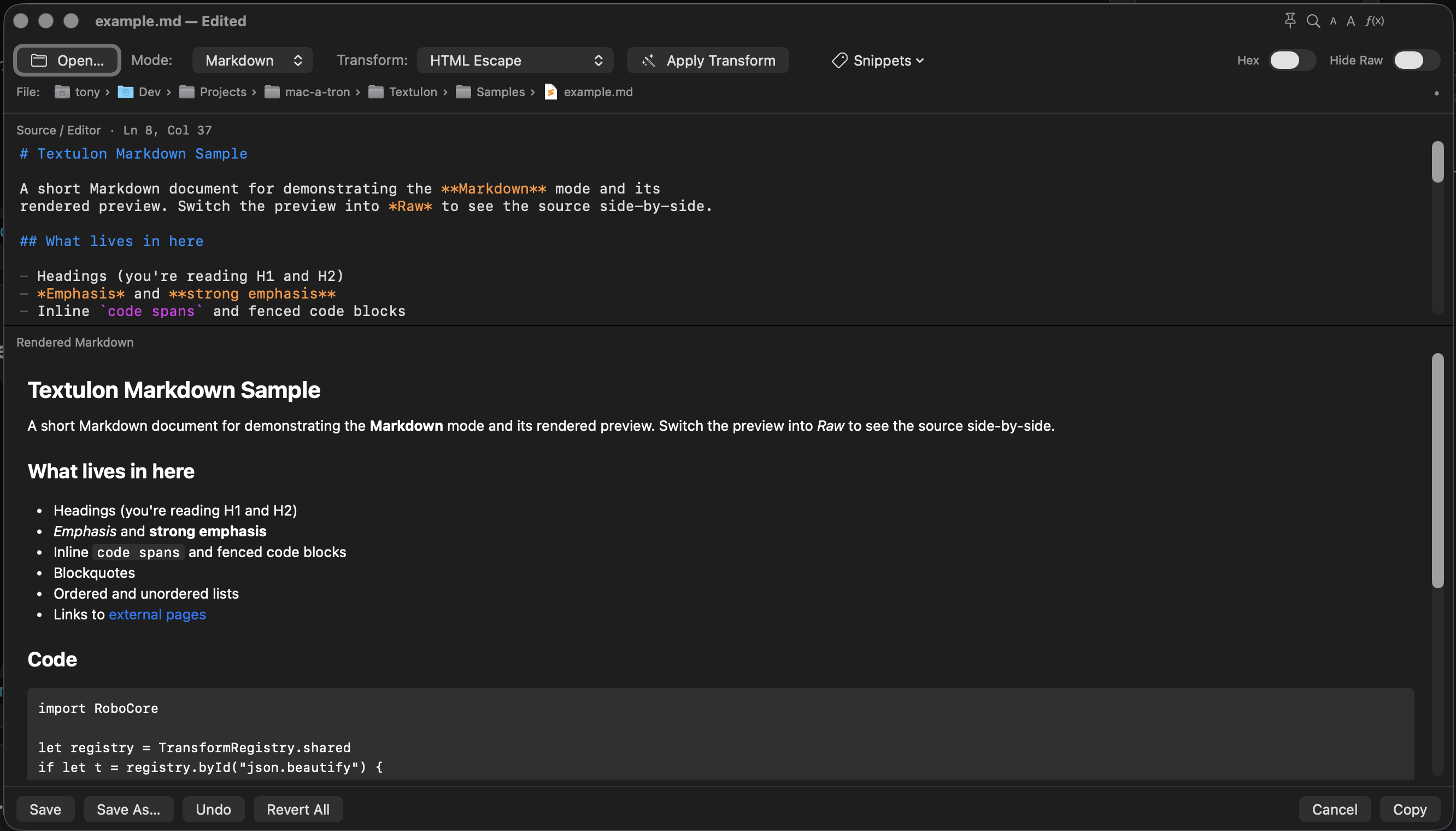
| Markdown | Rendered Markdown (HTML in a sandboxed WKWebView) with inline Mermaid fence support | Source on top, rendered preview below. Fenced mermaid / mmd blocks render as diagrams inside the Markdown document. |
| Mermaid | Rendered Mermaid diagram (flowchart, sequence, ER, etc) | Preview diagrams from .mmd or .mermaid files. |
| SVG | Rendered SVG preview with transparent-background controls | Auto mode recognises <svg. The preview bar offers System/Dark/Light backgrounds and a green 1 px frame around the SVG canvas. |
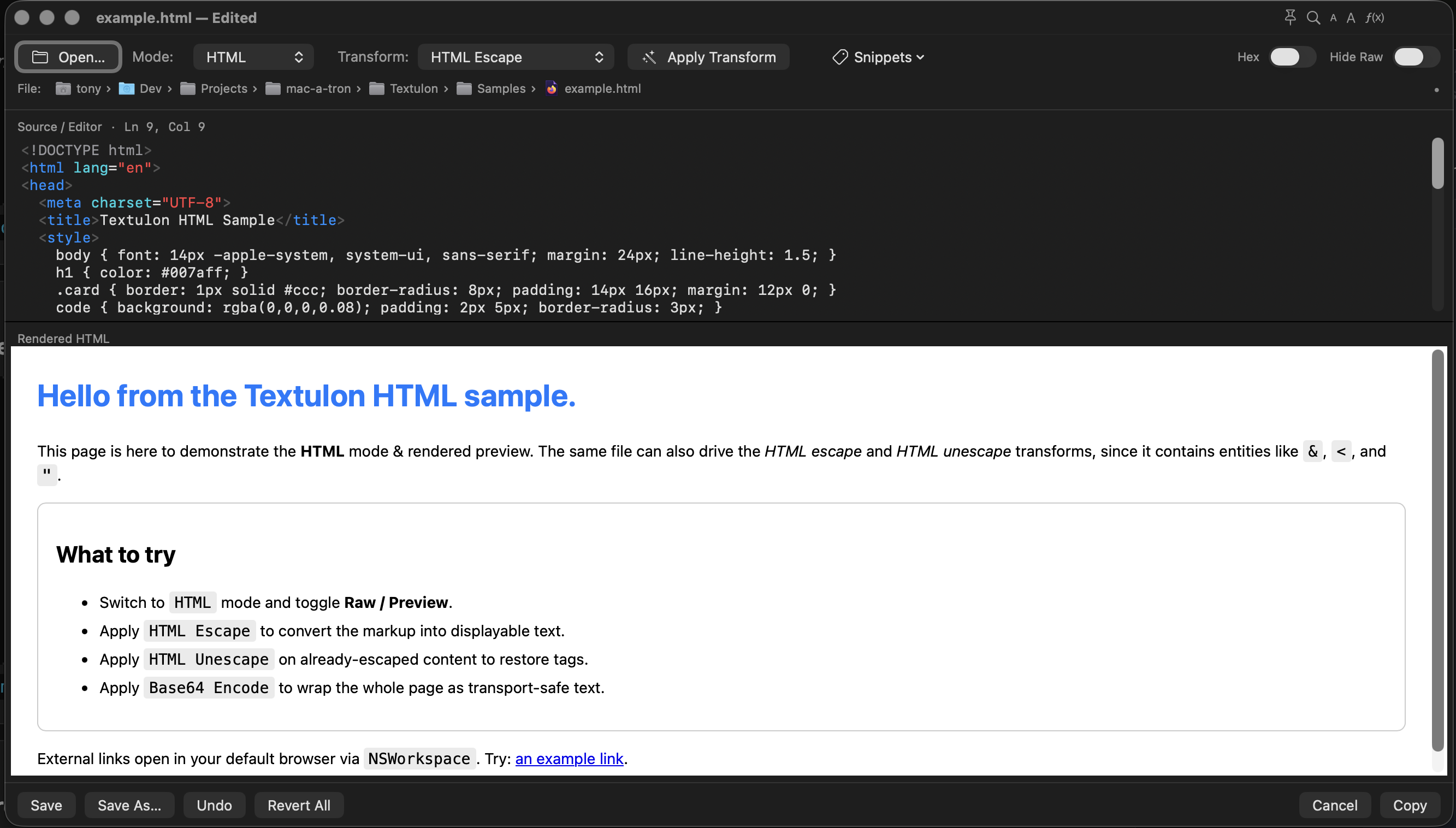
| HTML | Rendered HTML in WKWebView | Source on top; rendered preview below. Network is blocked. The preview paints its own background (white by default) so unstyled HTML stays readable in dark mode. Opening an .mht / .mhtml archive imports it to standalone HTML — see below. |
| JavaScript / TypeScript / Shell / YAML / TOML / INI / Python / Go / Swift | Source syntax colouring | Lightweight source editing and inspection; Shell mode also provides rc/profile snippets. |
| RoboKeys | Scratch pane that receives live robo keys output. | Test key chains before binding them to a Stream Deck button. |
| ASCII | Live string-extraction results with inline filters. | Extract readable ASCII / UTF-8 / UTF-16 BE strings from binary noise. |
| Hex (toggle) | Byte grid above mode-native preview | Inspect/edit bytes for any file. .bin, .dat, .raw open with Hex view on by default. |
<svg), code/settings files,
RoboKeys-looking text, and Parseo-recognised binaries.
.mht or .mhtml web archive —
the format Safari, Chrome, and Word use for "single file" page saves — unpacks the MIME parts and
rewrites them into one standalone HTML document with the referenced images and stylesheets inlined
as data: URIs. Textulon opens the converted document under the sibling
.html name as an unsaved tab, so the original archive is never overwritten; press
⌘S to keep it. Resources the archive did not actually contain are reported
as an unresolved-reference count rather than silently dropped.
Editor, Tabs, and Restore
| Feature | Details |
|---|---|
| Tabs | The tab bar appears when more than one document is open. Use ⌃Tab and ⌃⇧Tab to switch documents. |
| File breadcrumb | Click the final file name to copy the full path. Click a folder segment for Open File, Reveal in Finder, and path-copy options including home-relative and current-directory-relative paths when available. |
| Session restore | Tabs marked Keep restore after quit. Stream Deck-originated tabs default to Ephemeral and are not saved. Memory buffers marked Keep are stored as compressed session data. |
| Reopen closed tab | ⇧⌘T reopens the most recently closed file-backed tab and keeps walking back through the session's closed tabs — the inverse of ⌘W. Closed files are also promoted to the top of Open Recent, which remembers the last 10 files across runs. |
| Close policy | Closing the last non-blank document replaces it with a blank one rather than leaving an empty window; closing that sole blank document quits Textulon. |
| Opening files | ⌘O, drag-and-drop onto the window, or a path on the command line. Multiple files open into multiple tabs. When Textulon is already running, a CLI open is forwarded into the existing instance. |
| Auto-save | The editor checkpoints roughly once a minute so an unexpected quit does not lose work. This is crash insurance, not a substitute for ⌘S — auto-save does not write over your file. |
| Change detection | If a file is modified by another program while it is open, Textulon offers to reload it. It compares contents rather than just the timestamp, so a touch that did not change anything does not prompt. Esc dismisses the prompt. |
| Spell check | Standard macOS continuous spell checking is available in the source editor, with the usual right-click correction menu. |
| Revert All | Restores the editor to the contents last opened or last saved, after a confirmation. Disabled when nothing has changed. |
| Window placement | Textulon remembers the last window size, but launch placement prefers the screen holding the focused window, or the mouse's screen. The saved position is used as a fallback only when it is still fully visible. |
| Stay on Top | ⌥⌘P, or the titlebar pin glyph, floats the window above others. The preference persists across runs. |
| Find / Replace | ⌘F opens Textulon's source find panel with literal or regex search, case and whole-word options, context rows, jump, replace current, and replace all. |
| Word wrap / line numbers | ⌘⌥W cycles wrap through three states — full width, column (wraps at the Wrap column set in Settings, for reading prose on a wide window), and off. The column state is skipped when no wrap column is configured. ⌘⌥L toggles line numbers. |
| Get Info | ⇧⌘I opens a panel with the file's size, dates, encoding, and line/word/character counts — plus an editable Document Properties section for formats that can carry them. |
| Zoom | Source and render panes carry separate persisted zoom levels. ⌘+ / ⌘- / ⌘0 route to whichever pane has focus, so a dense Mermaid diagram and a comfortable source font can coexist. |
| Current line | The cursor line can be highlighted with a configurable background from Settings. |
| Rectangular selection | ⌥⇧ drag selects a source rectangle. Textulon-to-Textulon copy/cut/paste preserves columns by using a private pasteboard payload plus normal plain text. |
| Match actions | ⌘M jumps to the mate; ⇧⌘M selects the block. Matching covers brackets, XML/HTML/SVG tags, Markdown heading sections, Mermaid subgraph/end, and settings sections, while skipping common strings/comments lexically. |
| Undo history | ⌘⌥Z shows Textulon's visible edit history. Typing groups close after about four seconds of inactivity; transforms, snippets, paste, cut/delete, and line edits become separate records. |
| Snippets and colour | Markdown/HTML toolbar buttons wrap selected text. SVG snippets include document scaffolds, shapes, and transform stubs; Shell snippets cover common rc/profile patterns. The shared colour picker inserts colour text in HTML, Mermaid, and SVG. |
| Image data URIs | HTML, Markdown, and Mermaid modes can import an image file as Base64 data:image/... source text. Select an HTML image tag, Markdown image, or selected URI text and choose Export Selected Data URI Image to write it back to a file. Mermaid support is source-level because diagram rendering of data-URI images depends on Mermaid syntax and settings. |
Structured Navigation
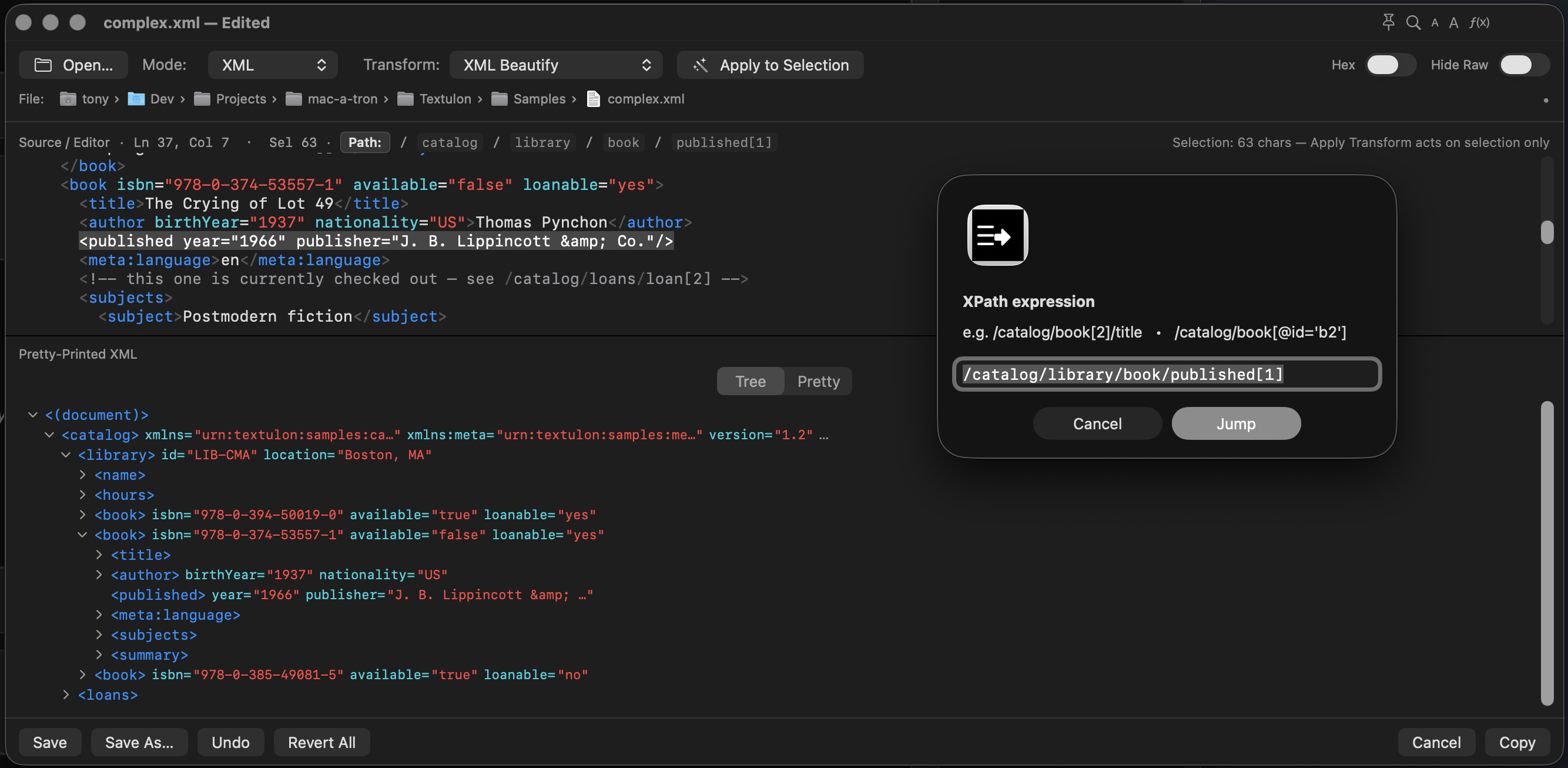
JSON and XML modes are not just pretty-printers. Textulon parses the source into a tree whose rows map back to source ranges. Click a node to select the matching text in the editor, or use the Query tab to run a JSONPath / XPath expression.
| Feature | Details |
|---|---|
| Tree | Collapsible JSON objects/arrays and XML elements/text nodes. Parse errors show the failing offset. |
| Query | JSONPath supports exact paths, quoted keys, array indexes, wildcards, and descendant searches. XPath supports absolute paths, positional predicates, attribute equality, and namespace-prefixed names. |
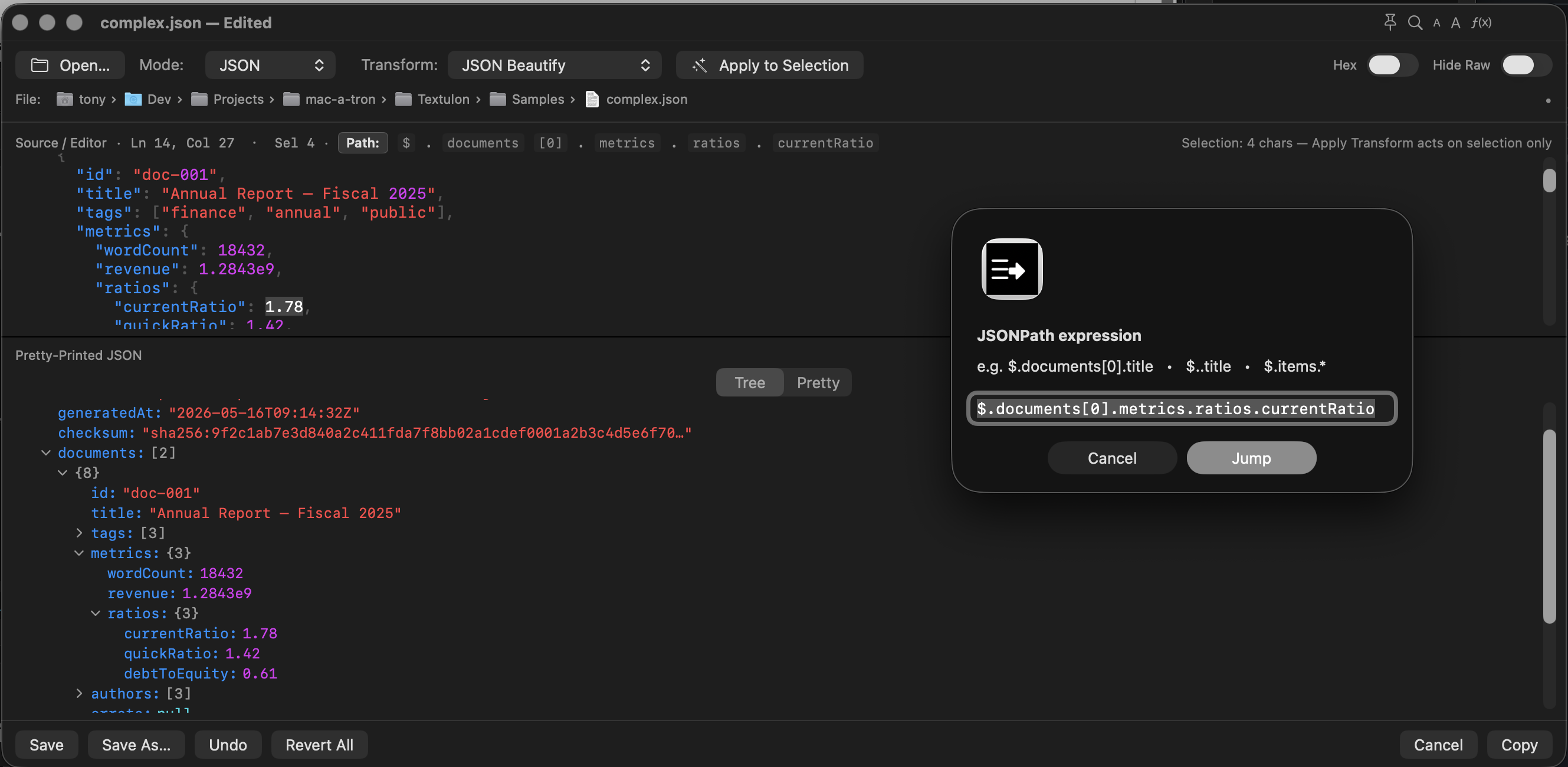
| Path row | The source header shows a clickable Path: chain. Click Path: or press ⌘⌥F to jump by expression; click a segment to jump to that ancestor. |
| Titlebar shortcut | The fx glyph opens the same JSONPath / XPath prompt without leaving the mouse on the editor. |
Document Properties
Markdown, Mermaid, HTML, and SVG documents can carry six document-level properties — Title, Author, Date, Description, Keywords, and Copyright. Textulon reads them from the file itself and writes them back to it. There is no sidecar database and no hidden index: the document is the storage.
| Format | Where the properties live |
|---|---|
| Markdown, Mermaid | YAML front matter — a --- … --- block at the very top of the
file. This is the Jekyll / Hugo / Pandoc convention rather than part of CommonMark, so
Textulon hides the block in the Markdown preview instead of drawing a horizontal rule
and dumping the raw keys. Mermaid parses the same block natively, and a title:
there is drawn as the diagram's title. |
| HTML | <title> plus <meta name="author">,
date, description, keywords, and
copyright inside <head>. A <head> is
created if the document has none. |
| SVG | <title> (which doubles as the graphic's accessible name) and
<desc> as direct children of the root <svg>. SVG
defines no element for author, date, keywords, or rights, so those go into a
<metadata> block as Dublin Core inside RDF — the form Inkscape and the
SVG spec's own examples use. A <title> nested inside a
<g> is that group's tooltip, not the document's title, and is left alone. |
| Everything else | JSON, XML, plain text, the source-language modes, hex/binary, and Parseo-backed documents have nowhere to put properties, so the section is hidden for them. Properties can still be typed directly into an exported PDF. |
Three places use them:
- Snippets → Document → Insert Document Properties adds an empty block
stamped with today's date. This is the one snippet that ignores the caret — a properties
block is only a properties block in one specific place, so it goes to the top of the file,
inside
<head>, or directly inside the root<svg>. On a document that already has a block it tops up only the missing fields. - Get Info (⇧⌘I) shows an editable Document Properties section. Save Properties (or Add Properties, when the file has none) rewrites the block in the editor buffer and marks the tab dirty — ⌘S remains the only thing that touches disk, so nothing changes underneath an unsaved file.
- Export Pageless PDF… opens with the fields already filled in from the
document and writes them into the PDF's own
/Infoproperties — what Preview's Tools → Show Inspector displays. A checkbox saves any edits back into the source document at the same time.
Properties survive conversion
Because all four formats hold the same six fields, converting between them carries the properties across instead of dropping them:
- Convert Mermaid to SVG moves the Mermaid front matter into the new SVG's
<title>,<desc>, and Dublin Core block. A whole document contributes its own front matter; a converted selection contributes that block's. - Export Rendered HTML (SVG or PNG) writes the source document's properties
into the exported file's
<head>— a Markdown file's front matter, or an SVG's<title>and Dublin Core, becomes<title>and<meta name="…">. - Export Pageless PDF writes them into the PDF's own properties. Copyright has no standard PDF field, so it is kept in the document and in macOS metadata only.
Writing macOS metadata
Both Get Info and the PDF export sheet offer Write macOS metadata, which sets
the file's Spotlight extended attributes — Title, Authors, Description, Finder comment,
Keywords, Copyright, and Creation date — so the values are findable with Spotlight and
mdls. The Description is also written to the Finder comment, the one field macOS's
own Get Info window will display for a plain text file.
cp -p, and Time Machine, but are lost through git, zip,
email attachments, and most non-Apple filesystems — which is exactly why the file's own front
matter or <head> is the durable copy.
Mermaid → SVG
A Mermaid diagram is a rendering instruction, not a picture — it needs a Mermaid runtime to become one. Converting to SVG turns it into a plain vector image that any browser, editor, or design tool can open on its own.
| Command | Scope | Result |
|---|---|---|
| Convert Mermaid to SVG File menu, or the preview context menu |
A whole standalone .mmd / .mermaid document. |
Opens the rendered diagram as a new, unsaved <basename>.svg tab. The
original file is untouched until you save the new one. |
| Convert Mermaid Selection to SVG Editor context menu |
One embedded diagram inside a Markdown or HTML document. | Replaces that block in place with the rendered SVG, leaving the rest of the document alone. |
Front matter properties on the Mermaid source are carried into the generated SVG — see Properties survive conversion.
Rendered HTML Export
Textulon can export rendered views as standalone HTML. The commands live in the File menu and are intentionally limited to modes where the rendered output adds something beyond saving source text.
| Command | Use | Output |
|---|---|---|
| Export Rendered HTML (SVG)… | Preferred for Markdown and Mermaid portability. | Textulon renders the preview, waits for Mermaid, strips renderer scripts, and saves HTML with Mermaid diagrams embedded as inline SVG. |
| Export Rendered HTML (PNG Images)… | Compatibility path for apps that do not import inline SVG reliably, such as Microsoft Word's HTML importer. | Rendered Mermaid SVGs are rasterized to 3x PNG data-URI images while keeping their normal display size. |
| JSON / XML tree export | Share a navigable structured view instead of just pretty source. | A standalone collapsible HTML tree with Expand All / Collapse All controls. |
| Export Pageless PDF… | Save rendered output without artificial page cuts. | One continuous PDF page for Markdown, Mermaid, HTML, JSON tree, or XML tree output — no page breaks driven through text lines, tables, or diagrams. Meant for screen and PDF reading rather than paper pagination. |
The Pageless PDF options sheet
Export Pageless PDF opens a real options sheet rather than a single width prompt:
| Option | What it does |
|---|---|
| Export width | The page width the renderer lays out against. Use a wider value for large Mermaid diagrams. Remembered between exports. |
| Document properties | Title, Author, Date, Description, Keywords, and Copyright, pre-filled from the document. These are written into the PDF's /Info dictionary — the fields Preview's Tools → Show Inspector shows. The author value is remembered as a default for later exports. |
| Save properties back to the document | Writes any edits you made in the sheet back into the source document's front matter or <head>, so the PDF and the source do not drift apart. |
| Write macOS metadata | Optional, one-way Spotlight write. See Writing macOS metadata. |
Textulon does not export Pretty JSON/XML as HTML; use the
json.beautify or xml.beautify transforms when you want
formatted source text.
Copying Rendered Content
Copying rendered Markdown or HTML is not one operation, because receiving apps disagree about what a rich-text clipboard should contain. Textulon offers both behaviours instead of picking one and losing the other:
| Copy mode | What lands on the clipboard | When to use it |
|---|---|---|
| HTML Only (default) | Only public.html, in OneNote-compatible Office HTML. RTF, plain text, and
WebKit extras are deliberately omitted. |
OneNote for Mac. It accepts rich content only when this is the sole type on the clipboard — any additional type makes it fall back to plain text. |
| Multi-Variant | WebKit's native copy: HTML, RTF, plain text, and a web archive. | Most other applications. Broader compatibility, but breaks OneNote paste. |
⇧⌘C (or Edit → Copy Special…) shows the picker on each copy so you can choose per-copy. It opens focused on the other mode — press Space to switch and Enter to confirm, or just Enter to keep the current default. A "Save to Settings" checkbox (on by default) updates the persistent default, which can also be set in Settings → Default Copy Mode.
Hex View
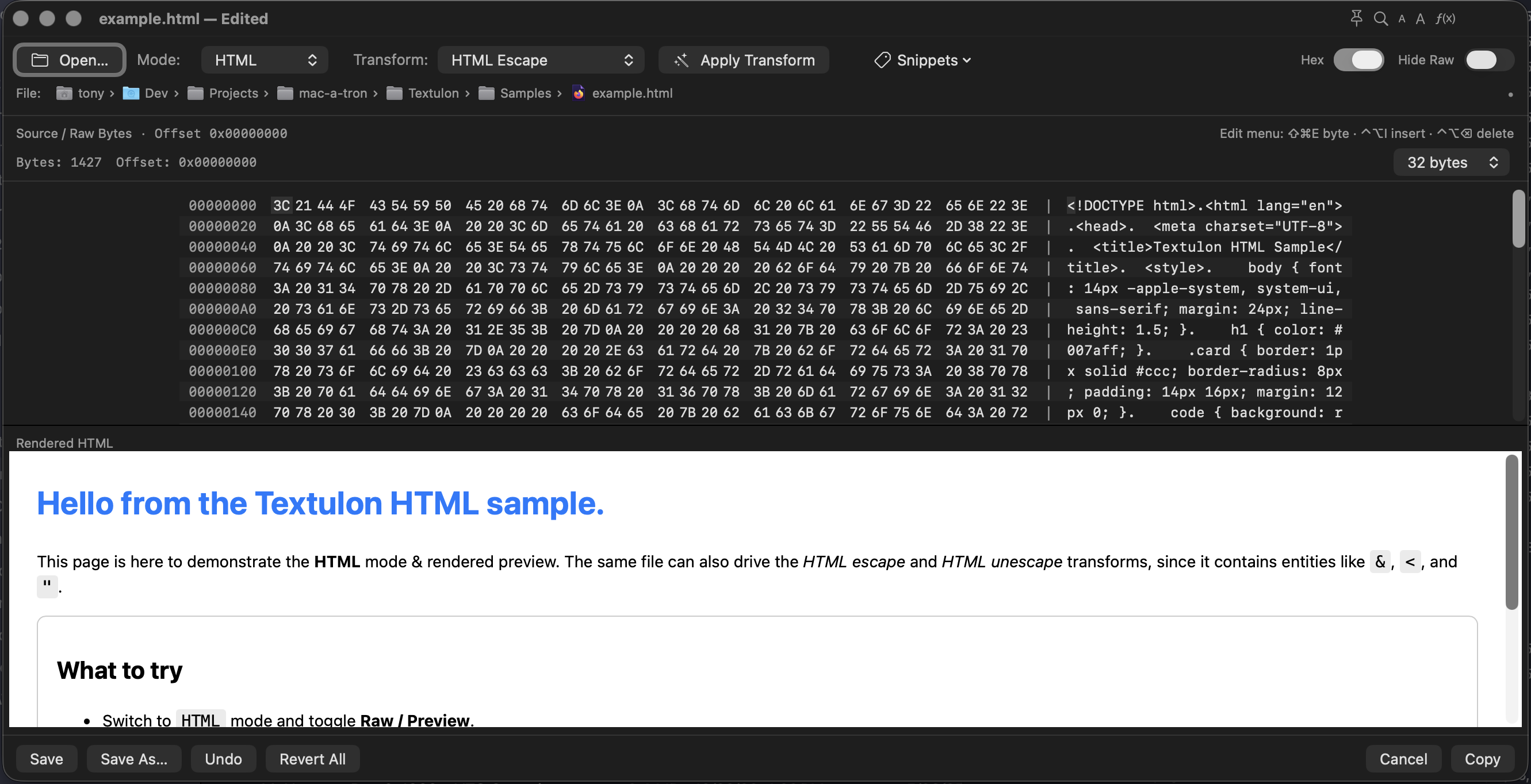
Hex view is a source-pane toggle, not a mode. Turn it on with ⌘H or the header switch to inspect bytes while the Render pane stays mode-native. A JSON file can show raw bytes on top and the JSON tree underneath.
| Hex capability | Details |
|---|---|
| Byte grid | 8-digit address column, grouped hex bytes, printable ASCII column, and 0x10 / 0x20 / 0x30 / 0x40 byte row widths. |
| Editing | ⇧⌘E edits a byte at an offset, ⌃⌥I inserts a 0x00 byte, and ⌃⌥⌫ deletes the selected byte. |
| Find | ⌘F accepts addresses (0x100), hex patterns (48 65 6C), quoted text, or plain UTF-8 text. |
| Binary files | .bin, .dat, and .raw open as bytes. Files above 32 MiB warn before loading; files above 256 MiB are refused. |
| Saving | When Hex view is active, Save writes bytes verbatim instead of round-tripping through UTF-8. |
Binary Metadata (Parseo)
Textulon embeds Parseo to inspect binary file metadata — MP3/ID3 tags, MP4 atoms, PNG chunks, PDF info, MPEG-TS packets, OneNote sections, and other bundled formats. Open a supported file from Finder or ⌘O; Parseo auto-detects the format when possible.
- Raw pane — exact on-disk bytes in Hex view.
- Render pane — structured JSON tree (collapsible nodes) for metadata;
OneNote (
.one) shows an HTML reader view instead. - Save and Update — saves bytes to disk, then re-runs Parseo (preview does not live-update while you edit).
- Re-parse — force a specific format when auto-detection is wrong.
ASCII Mode
ASCII mode runs RoboCore's string extractor against the current source. For binary
files it scans the loaded bytes; for normal text it scans the editor's UTF-8 bytes.
The same engine powers the ascii transform, the Stream Deck action, and
the {ascii} robo keys token.
| Control | Use |
|---|---|
| Min length | Drop strings shorter than the chosen length. Default is 6. |
| Alpha % | Require a percentage of letters, digits, and common punctuation. Set to 0 to disable. |
| UTF-8 / UTF-16 | Accept multi-byte UTF-8 and ASCII-range UTF-16 BE pairs. |
| Offsets | Prefix each result with the starting byte offset. |
| Suppress / Ignore / Search | Strip matching tokens, reject chosen characters as ASCII, or keep only strings containing a case-insensitive search term. |
Transforms
Every transform is implemented once, in RoboCore’s TransformEngine, and exposed via the
shared TransformRegistry. The Transform dropdown is ranked: in
Auto mode, the most applicable transform is offered first.
| id | What it does |
|---|---|
rot13 | ROT-13 — reciprocal letter substitution. |
rot18 | ROT-13 for letters + ROT-5 for digits (reciprocal). |
json.beautify | JSON beautify (sorted keys). |
json.minify | JSON minify. |
xml.beautify | XML beautify via XMLDocument. |
html.escape | Encode &, <, >, ", '. |
html.unescape | Decode named & numeric HTML entities. |
url.encode | RFC 3986 percent-encoding. |
url.decode | Percent-decoding. |
base64.encode | Base64 encode (UTF-8 input). |
base64.decode | Base64 decode → UTF-8. |
lines.trim | Trim each line. |
lines.sort | Sort lines (localized standard compare). |
lines.unique | Unique lines, preserving first-seen order. |
lines.sortUnique | Sort + unique. |
lines.toLF | Convert line endings to LF (Unix). |
lines.toCRLF | Convert line endings to CRLF (Windows). |
text.uppercase | Uppercase the whole text. |
text.lowercase | Lowercase the whole text. |
text.trim | Trim leading/trailing whitespace from the whole text. |
url.removeQuery | Strip everything from ? onward (URL host+path). |
ascii | Extract ASCII / UTF-8 / UTF-16 BE strings from binary noise. |
auto | Detect the content kind and apply the best-fit transform. |
lines.toLF / lines.toCRLF
when you deliberately want to change them — for example, normalising a file that came off a
Windows share before committing it.
robo keys and the Keyboard Shortcut action by its {token} form —
for example {json beautify}, {url decode}, {uppercase},
{remove query}, and {ascii}. Run robo keys --help for
the complete token list.
Invocation
Textulon accepts a small CLI surface so that any front-end can launch it. The simplest form:
Textulon [<path> | --file <path> | -i <path>]     # autodetect mode by extension+contents
        [--input-file <path>  | --input-stdin]   # plain text in, --mode controls mode
        [--payload-file <path>| --payload-stdin] # full JSON payload (§5)
        [--mode auto|plain|json|jsonl|xml|markdown|mermaid|svg|html|robokeys|hex|ascii]
        [--output-behavior copyOnly|pasteBack|viewOnly]
        [--preferred-transform <id>]
        [--on-top yes|no]
        [--ephemeral-session | -es]              # separate throwaway instance
        [--version | -v]
        [--help | -h]
Already running? A CLI file open is forwarded into the existing Textulon
instance instead of launching a second one. Use --ephemeral-session (or
-es) when you deliberately want a separate, temporary instance whose tabs are
neither restored nor saved.
Input vs. payload. The --input-* flags pass just the text;
everything else (mode, output behaviour, etc.) comes from other CLI flags.
The --payload-* flags pass an entire §5 JSON document —
with sourceText, mode, outputBehavior,
originatingAppBundleId, originFrame, etc. — which is what an
automation front-end (Stream Deck, Raycast, robo) sends when it wants to carry origin metadata.
A bare <path>, --file, and -i are the friendly forms:
load a file and let Textulon pick the mode.
In the running app:
| Shortcut | Action |
|---|---|
| ⌘O | Open File — asks before discarding unsaved changes. |
| ⌘S | Save back to the originating file (Save As if none). |
| ⇧⌘S | Save As — extension defaults from the current Mode. |
| ⌘N | New untitled tab. |
| ⇧⌘I | Get Info — file details plus editable Document Properties. |
| ⌃Tab / ⌃⇧Tab | Switch to next / previous document tab. |
| ⇧⌘T | Reopen the most recently closed tab, walking back through the session's closed tabs. |
| ⌘P / ⇧⌘P | Print rendered/default view / Print Source. The standard macOS print dialog includes PDF export. |
| ⌘W | In the editor: dismiss the find panel or Query tab first; close the window only when no overlay is up. In Help/Settings: close that window. |
| Esc | Closes the Help window. In the editor: dismisses the find panel or Query tab; otherwise no-op. |
| ⌘Q | Quit Textulon, regardless of which overlay is up. |
| ⌘F | Find / Replace. In source text: literal or regex search with context rows, jump, replace current, and replace all. In Hex view: byte-aware find. |
| ⌘G | Find next in the active find target. |
| ⌘J | Jump to line. |
| ⌘⌥F | JSONPath / XPath jump prompt in JSON or XML mode. |
| ⌘M / ⇧⌘M | Jump to match / select matching block. |
| ⌘⏎ | Apply Transform — operates on the selection if any; in RoboKeys mode, runs the keys command into the scratch pane. |
| ⌘B / ⌘I | In Markdown and HTML modes, insert Bold / Italic at the cursor (or wrap the selection). |
| ⌘] / ⌘[ | Indent / outdent selected or current source lines. |
| ⌘⌥Z | Show visible undo history and roll back to a selected record. |
| ⌥⇧ drag | Rectangular source selection; copy/cut/paste preserves columns inside Textulon. |
| ⌘? / F1 / ⇧⌘? | Open the Help window. |
| ⌥⌘P | Toggle Stay on Top (Pin). |
| ⌘⌥M | Focus the Mode picker (then Space / arrows to change). |
| ⌘⌥T | Focus the Transform picker (then Space / arrows to change). |
| ⌘⌥I | Open the Snippets menu (Markdown, HTML, and other snippet-capable modes only); then ↓ ↩ to insert, or ↓ → ↩ for a sub-group item. |
| ⌘H / ⌘T | Enter Hex view / return to Text view. |
| ⇧⌘E | Hex: Edit Byte at Offset. |
| ⌃⌥I / ⌃⌥⌫ | Hex: Insert Byte / Delete Byte. |
| ⇧⌘R / ⇧⌘0 | Toggle Hide Raw / force-show the source pane. |
| ⇧⌃⌘R | Immersive Preview — drop the preview chrome as well as the source pane. |
| ⌘\ / ⌘⌥\ | Toggle the split view off / switch the split between stacked and side-by-side. |
| ⌘⌥W / ⌘⌥L | Cycle source word wrap (full width → column → off) / toggle line numbers. |
| ⇧⌘C | Copy Special — choose HTML Only or Multi-Variant for this copy. See Copying Rendered Content. |
| ⌘+ / ⌘= / ⌘- / ⌘0 | Zoom in, zoom out, or reset to actual size. Source and render panes hold separate persisted zoom levels; the shortcut routes to the focused pane. |
A richer JSON payload mirrors §5 of the original spec:
{
  "sourceText": "<p>Hi</p>",
  "mode": "html",
  "preferredTransform": "html.escape",
  "outputBehavior": "copyOnly",
  "originatingAppBundleId": "com.apple.Safari",
  "originatingWindowTitle": "Some tab",
  "originFrame": { "x": 100, "y": 200, "width": 500, "height": 30 }
}
On Copy or Paste Back, the final text is placed on the system pasteboard and printed to stdout (newline-terminated). On Cancel, Textulon exits with code 1 and leaves the clipboard alone.
Screenshots
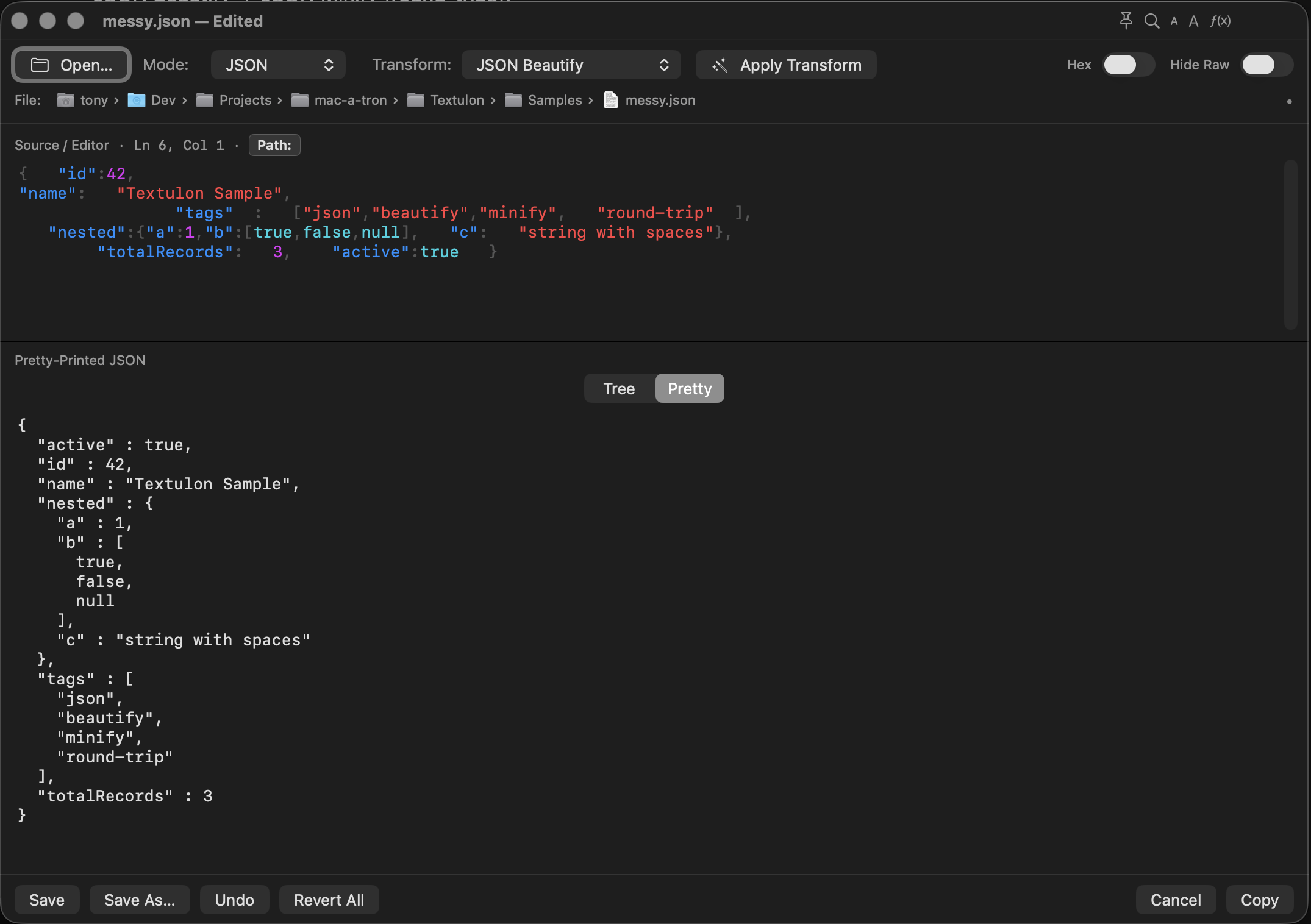
Main window — JSON beautify
Markdown — rendered preview
HTML — rendered preview
Structured JSON — tree, path row, and query
XML — XPath navigation
Hex view — byte grid and byte-aware find
Privacy
Textulon is designed to handle secrets safely:
- No telemetry, no analytics, no remote calls of any kind.
- The app’s entitlements explicitly disable network client access.
- The Stream Deck command API uses a user-local Unix-domain socket at
~/Library/Application Support/Textulon/textulon.sock. It is not a TCP listener and cannot be reached remotely. - The preview
WKWebViewblocks all navigation after the initial load; clicked links open in your default browser viaNSWorkspace, never inside the preview. - No plaintext temp files are written; input is consumed via stdin or a file path you supply.
- Stream Deck-originated Textulon tabs default to Ephemeral and are excluded from session restore.
- Kept unsaved memory buffers are stored as compressed session data rather than obvious plaintext.
- Structured parsing, Hex view, and ASCII extraction are local-only operations.
Command API
When Textulon is running it exposes a small newline-delimited JSON API over a Unix-domain socket. Mac-A-Tron’s Textulon Context Button action uses this to read state and run direct Textulon commands without relying on keyboard focus.
| Item | Value |
|---|---|
| Socket | ~/Library/Application Support/Textulon/textulon.sock |
| Transport | Unix-domain socket, request/response JSON, one JSON object per line. |
| State keys | mode, effectiveMode, dirty, diskStored, hasSelection, selectionLength, supportsPreview, hideRaw, splitOrientation, hexView, parseoFile, file name/path. |
{"type":"getState","id":"1"}
{"type":"getCommands","id":"2"}
{"type":"runCommand","id":"3","command":"toggleHideRaw"}
{"type":"runCommand","id":"4","command":"insertSnippet","args":{"name":"Bold","mode":"markdown"}}Textulon Context Button setup
Install or update the Mac-A-Tron Stream Deck plug-in, then add Textulon Context Button from the Mac-A-Tron category. Each key holds ordered rules keyed on mode, dirty state, disk-backed state, and selection state; the first matching rule supplies the button title and command.
For example, one key can show Save when the active Textulon document is dirty, Reload when it is clean and disk-backed, and Apply otherwise. Commands go through the local socket above; keyboard shortcuts remain available as a fallback rule type.
The starter profile intentionally leaves Textulon Context action images unset — Stream Deck only lets the plug-in draw dynamic mode, dirty, and disconnected states when the profile has not supplied a custom key image.
TextuLite for Windows
TextuLite for Windows is the Windows edition of the same tool. It is a .NET application that ships the Swift RoboCore engine and the shared renderers beside it, so users install neither .NET nor Swift separately. Native builds exist for x64 and ARM64, as an installer or a portable ZIP, with in-app updates. Downloads →
What it has
| Area | On Windows |
|---|---|
| Editing | Tabs with session restore (including persistent untitled-document names), Find/Replace with regex, case, and whole-word, Go to Line, word wrap, line numbers, current-line highlighting, zoom, and drag-and-drop open. CtrlShiftT reopens the last closed file. The close-disposition policy matches macOS. |
| Modes and previews | Auto-detected or forced: Markdown, Mermaid, SVG, HTML, JSON, JSON Lines, XML, and the source-language modes, with the structured tree and its Expand All / Collapse All controls. |
| Document properties | Full parity — a Document Properties… editor plus the Insert Document Properties command, across Markdown, Mermaid, HTML, and SVG, with the same conservative round-trip behaviour and the same PDF /Info stamping. |
| Mermaid → SVG | Both forms — whole document from the Export menu, and Convert Mermaid Selection to SVG from the editor context menu, with the same off-screen validation that hides the command when the selection is not valid Mermaid. |
| Export | Rendered HTML, PDF, Pageless PDF at a chosen width with the document's properties, and Print. |
| MHTML import | Opens .mht / .mhtml archives into standalone HTML with resources inlined, the same as macOS. |
| Theme | Follows the Windows theme, or force light/dark. |
| Transforms | The complete RoboCore set, ranked for the current content, including lines.toLF / lines.toCRLF. |
What it does not have
These are macOS-only, either because they depend on macOS frameworks or because they exist to serve the Stream Deck pipeline:
| Missing on Windows | Why |
|---|---|
| Hex view | Not implemented on Windows. |
| Binary metadata (Parseo) | Parseo is embedded in the macOS app only. |
| ASCII mode | The ascii transform still exists; the dedicated live-filter mode does not. |
| RoboKeys mode | Depends on the macOS robo keystroke pipeline and Accessibility permission. |
| Command API socket and Stream Deck context buttons | The socket API exists to drive Textulon from Mac-A-Tron. Windows Stream Deck automation is WinTronic's job. |
| Stay on Top, rectangular selection, the full snippet library, Copy Special | Not ported. The Insert Document Properties command is the one snippet that crossed over. |
TextuLite for iOS
TextuLite on iPhone and iPad is not a smaller Textulon window — it is a different shape of the same tool. On the desktop, text arrives from a Stream Deck key or a pipe. On iOS it arrives from the share sheet, so the app is built around receiving a document, showing it usefully, and handing something back — not around a long-lived editing session with tabs and a split window.
The distinct viewer
In place of the desktop's source/render split, TextuLite has a three-way segmented view. Only the segments that make sense for the current content appear:
| View | What it shows |
|---|---|
| Edit | The source, plus the transform picker ranked for the current content — the same engine and the same ranking as the desktop. |
| Rendered | Markdown, HTML, SVG, or Mermaid, via the shared TextulonRender module. When a transform has produced a result, the preview shows that result rather than the original. |
| Tree | An expandable JSON or XML structure, via the shared TextulonTree module. This segment appears only while the content actually parses, and clamps back to Edit when it stops being structured. |
Safari shares import the live page
Getting text in and results out
| In | Out |
|---|---|
| Share from another app · Open File from Files · Paste the clipboard, which opens a new document in its most useful view | Copy source or result to the clipboard · Save a named file to Files · Share a named file onward · Replace Source to feed the result back into the editor and apply another transform |
Rendered exports and Mermaid
The Rendered view can save or share a standalone HTML document or a PDF. Mermaid diagrams are completed as inline SVG before the HTML is written, so the recipient does not need TextuLite — or any Mermaid runtime — to see them.
Mermaid conversion works the same way it does on the desktop: Convert to SVG
opens a standalone Mermaid document as a new unsaved <basename>.svg
document, and selecting one exact Mermaid block in Source offers Convert Mermaid
Selection to SVG, which replaces that block in place. The command appears only once
the selection has been validated by an off-screen render.
What it opens
Plain text, Markdown, HTML, JSON, JSON Lines, XML, SVG, Mermaid, YAML, TOML, CSV/TSV, logs, configuration files, scripts, style sheets, and common programming-language source files. Text encodings: UTF-8, UTF-16, UTF-32, Windows-1252, ISO Latin-1, and Mac OS Roman. Binary files are rejected — there is no Hex view, no ASCII extraction mode, and no Parseo on iOS.
What it deliberately does not have
No tabs or session restore, no split window, no Hex or Parseo or ASCII or RoboKeys modes, no command socket, and no Stream Deck integration. These are desktop concerns; porting them would make a worse phone app, not a more capable one.