Glypher
Tap, double-tap, or long-press for three independent characters per key.
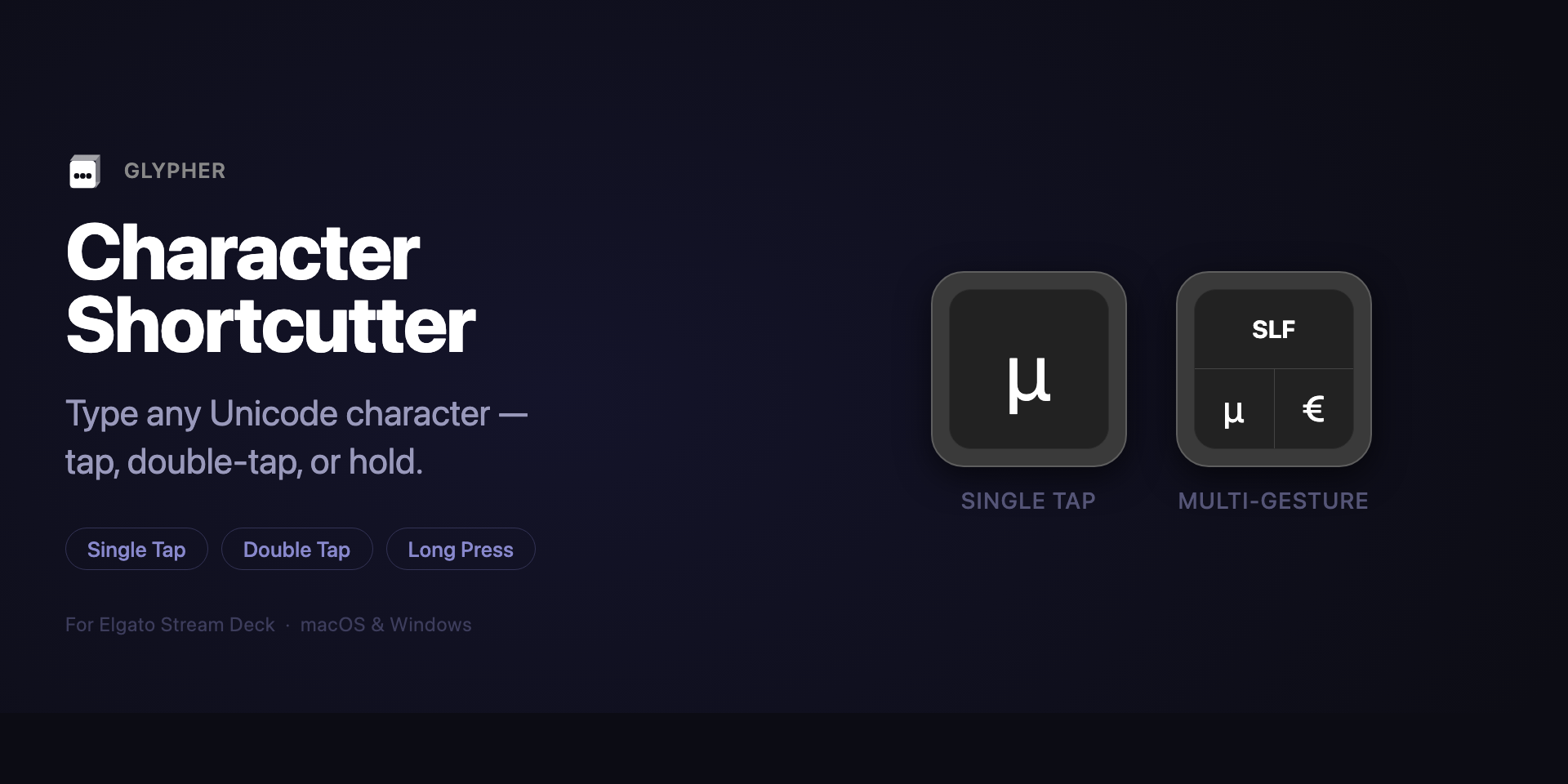
Glypher buttons on a Stream Deck. Each keycap shows its assigned character(s) and updates dynamically — no static images involved.
Origin
Glypher started from two recurring frustrations:
- Slack removes blank lines. Always. The only workaround is a Unicode line-separator character
(
U+2028), which Slack accepts but which has no keyboard shortcut. - Business symbols aren't on keyboards. µ, €, £, →, em-dashes, and similar characters require memorising obscure key combinations or reaching for a character picker every single time.
Both problems are solvable with a Stream Deck button. Glypher was written solely to solve them.
Features
Three characters per button
Each button can hold a primary, secondary, and tertiary character reached via tap, double-tap, and long-press gestures.
Works everywhere
Pastes into any focused application — browsers, terminals, chat clients, document editors, creative tools.
Invisible character labels
Characters like the line separator or zero-width space show a short custom label on the keycap so the button isn't blank.
Quick Insert palette
A built-in scrollable character picker organised by category so you don't need to look up code points.
Dynamic SVG button graphics
Button images are generated as SVG at runtime, with font sizes that scale automatically to the character count and zone size.
macOS & Windows
Uses the most reliable paste mechanism on each platform to avoid encoding corruption.
Tap / Double-Tap / Long-Press
Each Glypher button supports three independent character assignments through gesture timing:
| Gesture | Timing | Slot |
|---|---|---|
| Single tap | Press and release | Primary character |
| Double tap | Two presses within 300 ms | Secondary character |
| Long press | Hold for 600 ms | Tertiary character |
When only a primary character is configured, it fills the entire keycap. As secondary and tertiary slots are populated, the button automatically switches to a split-zone layout:
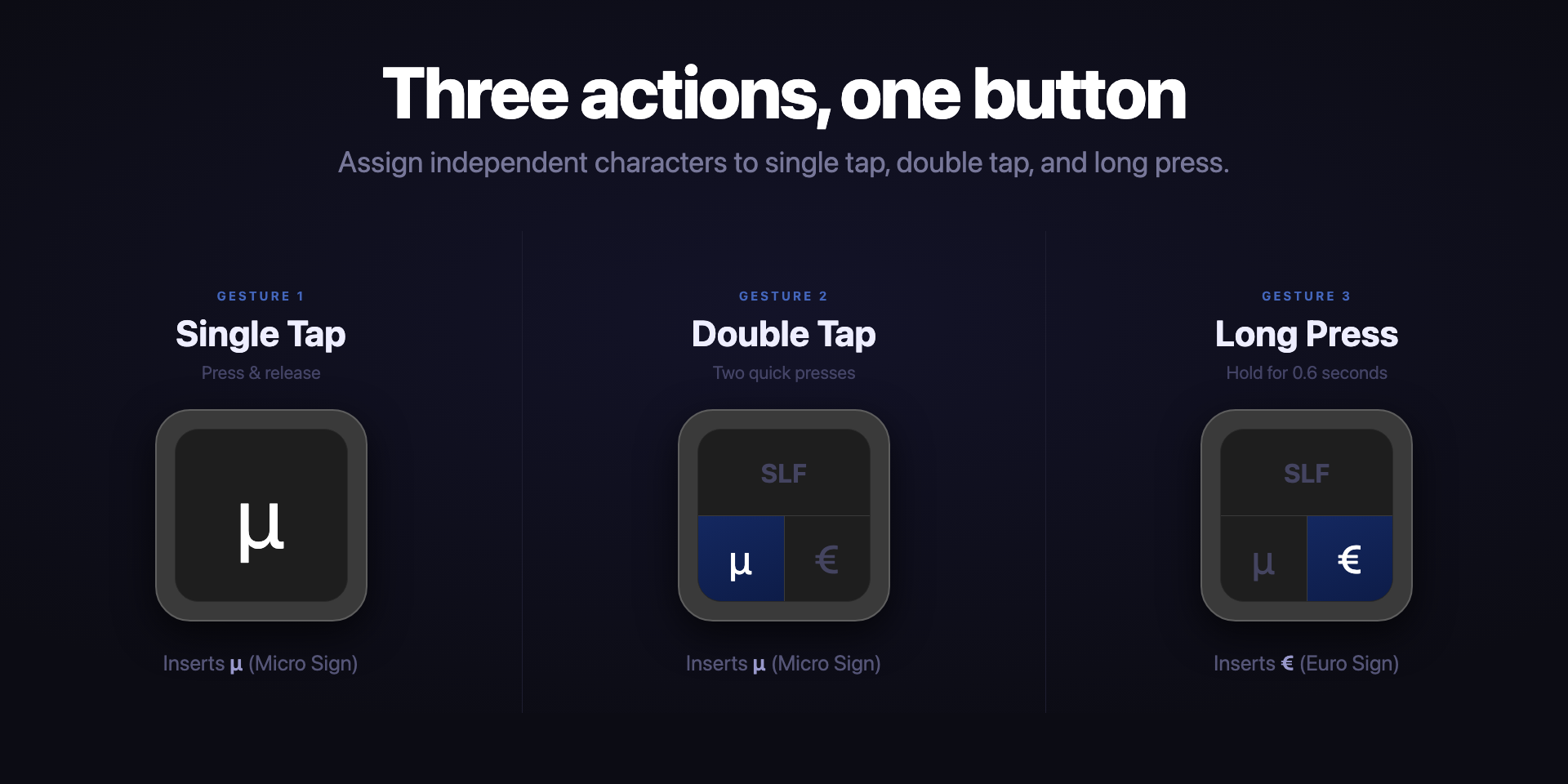
Buttons automatically adapt their layout to show primary, double-tap, and long-press zones.
Special Invisible Characters
Glypher has first-class support for characters that are invisible or have specialised semantics:
SlackLF — Line Separator U+2028
Slack parses this character as a real blank line without collapsing it. It's invisible in the message box but
preserved in the formatted output. Glypher shows the label SLF on the keycap.
U+2028 sneaks through. Press the button, get a blank line.
Zero-Width Space U+200B — label ZW-Sp
An invisible character that hints to text-layout engines that line-wrapping is allowed at this point. Useful for breaking automatic URL linkification in apps that linkify everything they see.
Non-Breaking Space U+00A0 — label NB-Sp
A visible space that prevents line-wrapping between two words — for example between a title and a name: Mr. Smith.
Quick Insert Palette
The Property Inspector (the configuration panel in Stream Deck) includes a scrollable character palette organised by category. Clicking any character pre-fills it into the active slot and automatically sets an appropriate display label for invisible characters.
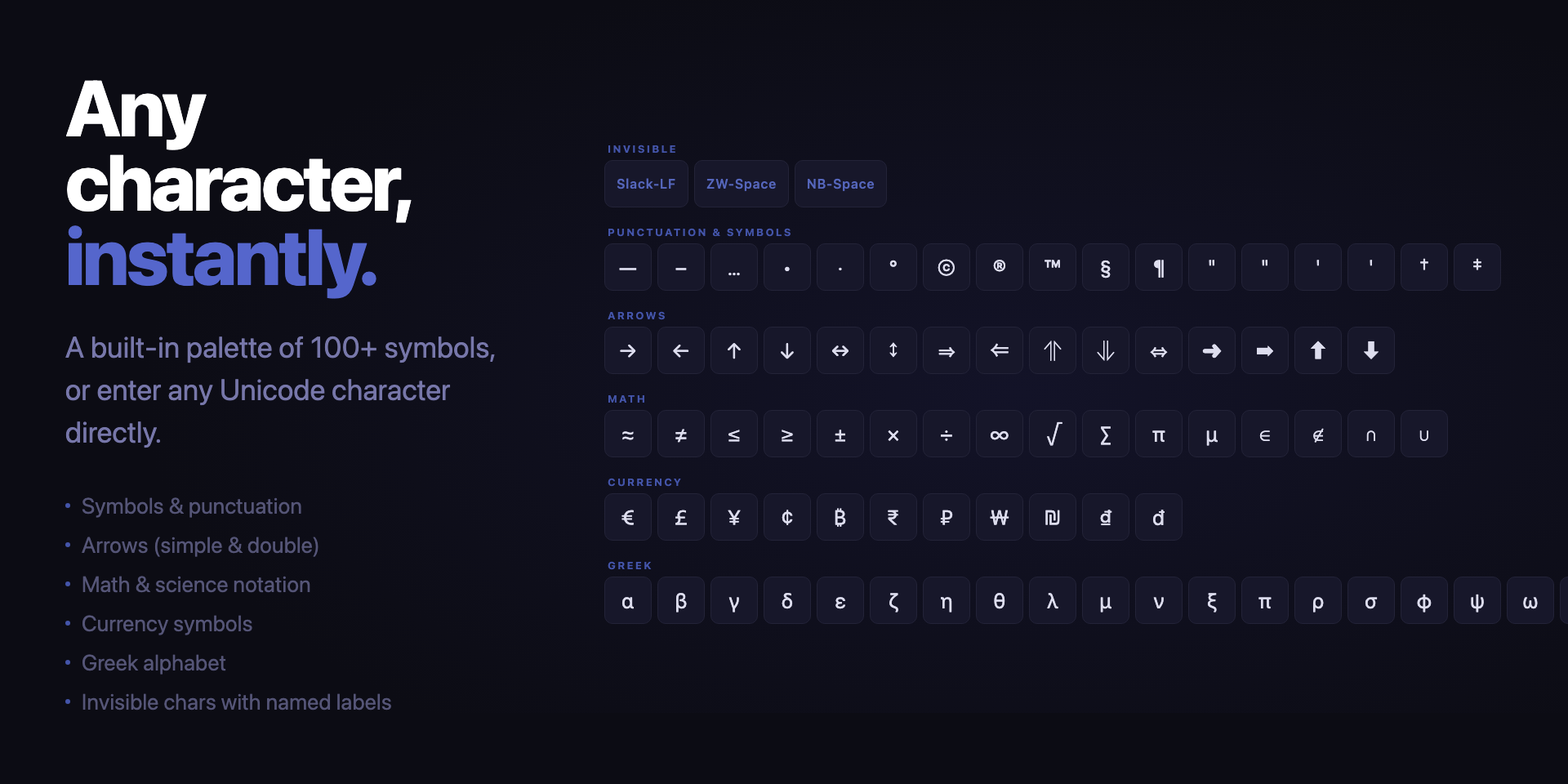
The Quick Insert palette makes it easy to find and assign characters without needing to know Unicode code points.
Palette categories
Invisible
Line Separator, Zero-Width Space, Non-Breaking Space — all pre-labelled for keycap display.
Punctuation & Symbols
Em dash, en dash, ellipsis, bullet, section, pilcrow, quotes, copyright, registered, trademark.
Arrows
→ ← ↑ ↓ ↔ ⇒ ⇐ ↩ ➜ and more directional arrows.
Math
× ÷ √ ≈ ≠ ∞ ≤ ≥ ± ∑ degree, micro sign.
Currency
€ £ ¥ ¢ ₿ ₹ — major world currencies at your fingertips.
Greek
π Ω Δ and other Greek letters commonly used in technical writing.
O.S. & Keys
⌘ ⌥ ⌃ ⇧ ⇪ ⎋ ⇥ ␣ ⌫ ⌦ ⏎ ⇞ ⇟ Apple logo, Globe/Fn, Windows logo, media controls, volume, brightness.
Emoji Picker Troubleshooting
The 😀 Browse emojis… button in Quick Insert tells you how to open the OS emoji picker. The Characters field accepts emoji by paste, so any picker — OS-native or third-party — works.
macOS — Emoji & Symbols picker
The standard shortcut is ⌃⌘Space (Control + Command + Space). This opens the
floating Emoji & Symbols window, which has search, categories, skin tone variants, and
recently used characters. Click any emoji and it inserts into the focused field.
- Open
System Settings → Keyboard → Keyboard Shortcuts → Input Sources. - Find Emoji & Symbols (may also appear as "Show Emoji & Symbols").
- Make sure the checkbox is enabled and the shortcut shown is still
⌃⌘Space. If it's blank or reassigned, click to re-record it. - If another app has claimed
⌃⌘Space, its shortcut will appear under App Shortcuts in the same panel, or inside that app's own preferences.
Common culprits that hijack ⌃⌘Space
| App | Where to check |
|---|---|
| Alfred | Alfred Preferences → Features → Universal Actions or custom hotkeys |
| Raycast | Raycast Settings → Extensions → search for conflicting hotkeys |
| BetterTouchTool | BTT → Keyboard Shortcuts tab |
| Karabiner-Elements | Complex modifications or simple key remapping rules |
| Magnet / Moom / Mosaic | Window snap shortcut assignments |
| Any app | System Settings → Keyboard → Keyboard Shortcuts → App Shortcuts |
Alternative: Edit menu
Many macOS apps expose the emoji picker through Edit → Emoji & Symbols in their menu bar. This always works regardless of shortcut conflicts.
Windows — Emoji picker
Press ⊞ + . (Windows key + period) or ⊞ + ; to open the built-in
emoji panel. It includes emoji, GIFs, kaomoji, and symbols. Click any item to insert it into
the focused field.
Third-party pickers
Any picker that copies an emoji to the clipboard, or inserts directly into the focused field,
works with Glypher's Characters field. Popular options include
Rocket (Mac, :-triggered), Lungo, and similar
text-expander utilities.
Platform Support
| Platform | Minimum version | Paste mechanism |
|---|---|---|
| macOS | 12 (Monterey) | osascript — AppleScript via stdin |
| Windows | 10 | powershell.exe -EncodedCommand |
How pasting works — macOS
The plugin spawns a single osascript process that both sets the clipboard
and fires Cmd+V in one atomic step:
set the clipboard to (character id 181)   -- µ
tell application "System Events" to keystroke "v" using command down
Using character id N (where N is the Unicode code point) sidesteps every encoding
conversion in the shell pipeline. An earlier implementation used pbcopy followed
by a separate osascript keystroke; this suffered from a clipboard race condition
where clipboard-monitoring software would re-encode UTF-8 as Mac Roman before the paste could
fire, producing garbled output such as Œº instead of µ. The
single-process atomic approach eliminates that race window entirely.
Glypher uses System Events for keystroke injection, which
requires Accessibility access. Grant it in
System Settings → Privacy & Security → Accessibility.
How pasting works — Windows
The plugin spawns powershell.exe with an -EncodedCommand argument
(Base64 of UTF-16LE) that loads System.Windows.Forms and pastes atomically:
Add-Type -AssemblyName System.Windows.Forms
[System.Windows.Forms.Clipboard]::SetText([System.Char]::ConvertFromUtf32(181))
[System.Windows.Forms.SendKeys]::SendWait("^v")
ConvertFromUtf32 correctly handles every Unicode code point, including characters
above U+FFFF that require surrogate pairs in .NET's UTF-16 strings.
Base64 encoding avoids command-line quoting issues with multi-byte characters.
[...char]), which yields full
Unicode code points — not UTF-16 code units — so surrogate pairs are handled correctly on both
platforms.
Starter Profile
Glypher ships with a 15-button starter profile (5 columns × 3 rows) pre-configured with the most commonly useful Unicode characters. Each button holds three characters via tap / double-tap / long-press.
Full character reference
| Button | Tap | Double-tap | Long-press |
|---|---|---|---|
| Invisible | LINE SEPARATOR U+2028 — SLF | ZERO-WIDTH SPACE U+200B — ZW-Sp | NO-BREAK SPACE U+00A0 — NB-Sp |
| Dashes | EM DASH — U+2014 | EN DASH – U+2013 | ELLIPSIS … U+2026 |
| IP (marks) | COPYRIGHT © U+00A9 | REGISTERED ® U+00AE | TRADE MARK ™ U+2122 |
| Marks | BULLET • U+2022 | SECTION § U+00A7 | PILCROW ¶ U+00B6 |
| Quotes | LEFT DBL QUOTE " U+201C | RIGHT DBL QUOTE " U+201D | RIGHT SINGLE ' U+2019 |
| Right arrows | → U+2192 | ⇒ U+21D2 | ➜ U+279C |
| Left arrows | ← U+2190 | ⇐ U+21D0 | ↩ U+21A9 |
| Vertical arrows | ↑ U+2191 | ↓ U+2193 | ↔ U+2194 |
| Relations | ≈ U+2248 | ≠ U+2260 | ∞ U+221E |
| Compare | ≤ U+2264 | ≥ U+2265 | ± U+00B1 |
| Arithmetic | × U+00D7 | ÷ U+00F7 | √ U+221A |
| Science | µ U+00B5 | ° U+00B0 | ∑ U+2211 |
| Major currency | € U+20AC | £ U+00A3 | ¥ U+00A5 |
| Minor currency | ¢ U+00A2 | ₿ U+20BF | ₹ U+20B9 |
| Greek | π U+03C0 | Ω U+03A9 | Δ U+0394 |
U+00B5 (Micro Sign),
not U+03BC (Greek small letter mu). They look identical but are distinct code points.
U+00B5 is what Option+M types on macOS.
Setup
Glypher uses System Events to fire Cmd+V. Grant access in
System Settings → Privacy & Security → Accessibility and enable the
Stream Deck entry (or the helper process) once prompted.
1) Install the plugin
Download and double-click the .streamDeckPlugin file. Stream Deck will import it automatically.
2) Add a button
From the Stream Deck app, drag a Glypher action onto any button. Open its Property Inspector to configure characters.
3) Pick your characters
- Type a character directly into the Primary, Secondary, or Tertiary field, or
- Open the Quick Insert palette, browse by category, and click to insert.
- For invisible characters the label is filled in automatically — you can customise it.
4) (Optional) Install the Starter Profile
The starter profile installs 15 pre-configured buttons covering the most useful Unicode characters. It is part of the installation.