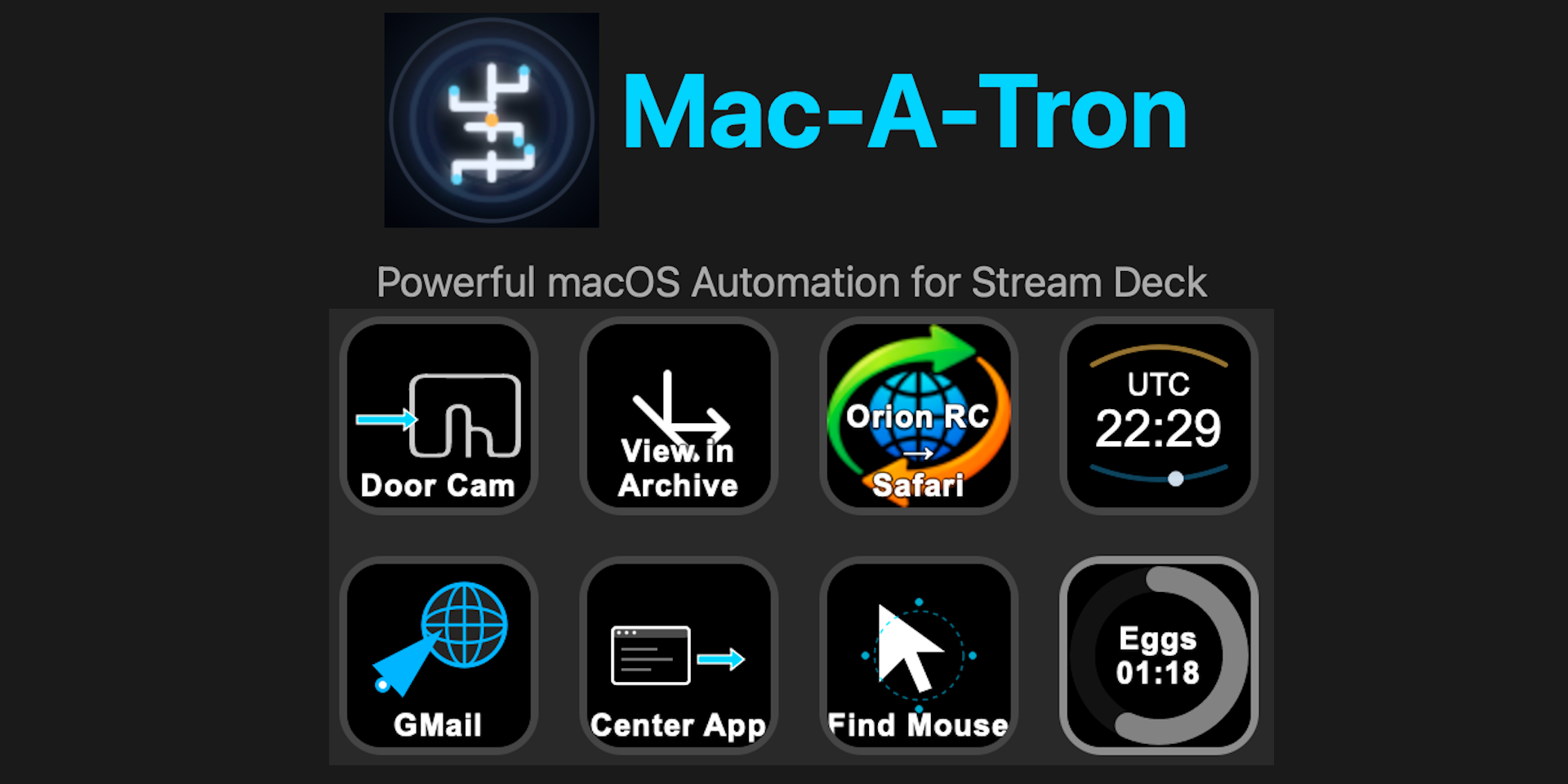
Introduction
Mac-A-Tron started as a way to solve a frustrating problem: BetterTouchTool's Stream Deck integration wasn't working on my corporate system, likely due to security software like CrowdStrike/FalconStrike interfering with the closed-source BTT plugin.
Rather than just patch the problem, I built a better solution—one that could handle more types of triggers and let you choose them from a dropdown menu instead of typing UUIDs. The BTT integration worked beautifully, and life was good.
But then I realized: if I could send commands to one app, why not extend it further? That's when Mac-A-Tron evolved into a comprehensive toolkit:
- Advanced keyboard automation with clipboard manipulation that goes far beyond simple shortcuts
- Browser Tab access as apps , finding or creating that one tab (e.g. GMail, Slack) and focusing it from a button
- Textulon-aware context buttons that read Textulon's current mode and document state, then change their labels and commands accordingly
- Window management that remembers each app's preferences and works seamlessly across multiple monitors
- Smart browser switching for when you need to go from private-and-fast to compatible-but-slightly-evil
- Time tracking with multiple timezones, countdowns, and stopwatches
All of this is powered by robo, a native Swift helper binary that provides reliable macOS automation where JavaScript alone falls short. It handles accessibility permissions properly, works with security software, and gives you the low-level control needed for real productivity tools.
Installation & Setup
This plugin requires macOS Accessibility permissions to function. When you first use any action, you'll be prompted to grant permission.
- Download and install the Mac-A-Tron plugin from the Stream Deck store
- When prompted, grant Accessibility permissions:
- Open System Settings → Privacy & Security → Accessibility
- Click the lock icon to make changes
- Add the robo helper binary and enable it
- Add actions to your Stream Deck from the plugin category
Profiles/Textulon.streamDeckProfile starter profile. It is also available from the
downloads page and is bundled into the Textulon DMG when Textulon is built for distribution.
Available Actions

Type text and keyboard shortcuts with powerful clipboard manipulation capabilities.
Configuration
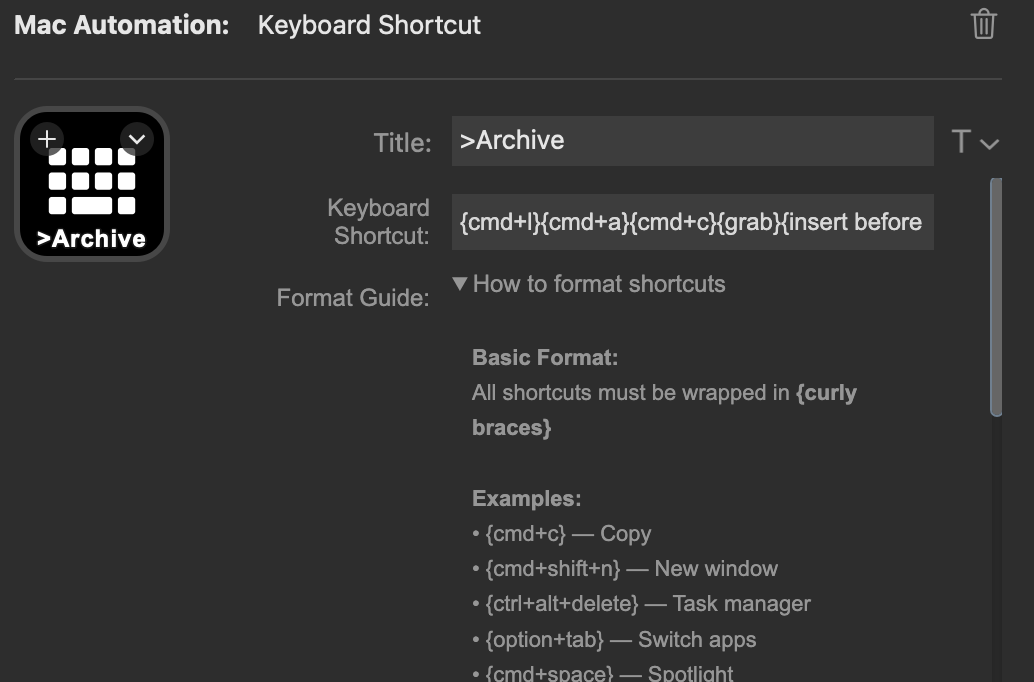
- Shortcut String: The text and commands to execute using the modern
{curly brace}syntax
Basic Usage
Hello World{enter}Plain text is typed as-is. Special keys use {curly braces}.
Clipboard Manipulation
The Keyboard Shortcut action includes a powerful clipboard buffer system:
| Command | Description |
|---|---|
{grab} |
Copy clipboard to Robo buffer |
{put} |
Paste Robo buffer to clipboard |
{paste} |
Type the Robo buffer contents |
{insert before <text>} |
Add text to start of buffer |
{insert after <text>} |
Add text to end of buffer |
{trim before <text>} |
Trim everything before and including text |
{trim after <text>} |
Trim everything after and including text |
Buffer Transforms
Apply a transform from RoboCore's Textulon engine to the Robo buffer in place. Same engine, same results across the Keyboard Shortcut action, the Transform Text action, and the Textulon app.
| Command | Description |
|---|---|
{pause N} | Pause for N milliseconds (timing helper, not a transform; included here for completeness — used inside any chain) |
{auto} | Detect content kind and apply the best-fit transform (delegates to the ranking used by the Textulon Auto mode) |
{rot13} | ROT-13 — reciprocal letter substitution |
{rot18} | ROT-13 for letters + ROT-5 for digits (reciprocal). Useful when the payload mixes letters and digits. |
{uppercase} | Uppercase the buffer |
{lowercase} | Lowercase the buffer |
{trim} | Trim leading/trailing whitespace from the whole buffer |
{trim lines} | Trim whitespace from every line |
{sort lines} | Sort lines |
{unique lines} | Deduplicate lines (preserves first occurrence) |
{sort unique lines} | Dedupe then sort |
{json beautify} | Pretty-print JSON |
{json minify} | Compact JSON |
{xml beautify} | Pretty-print XML |
{html escape} | Encode < > & and quotes |
{html unescape} | Decode named & numeric HTML entities |
{url encode} | RFC 3986 percent-encode |
{url decode} | Percent-decode |
{base64 encode} | Base64 encode (UTF-8 input) |
{base64 decode} | Base64 decode → UTF-8 |
{remove query} | Strip everything from ? onward (URLs) |
Example: ROT-13 the current field
{cmd+a}{cmd+c}{pause 100}{grab}{rot13}{put}{cmd+v}Select all → copy → grab into the buffer → ROT-13 the buffer → put back to clipboard → paste. The chain works the same way for any of the buffer transforms above.
Advanced Example: Archive.is URL
Create an archive.is link from the current URL in a web browser tab:
{cmd+l}{cmd+a}{cmd+c}{grab}{insert before http://archive.is/}{trim after ?}{put}{cmd+v}
This:
- Copies selected text (
{cmd+c}) - Grabs it to the buffer (
{grab}) - Removes everything after the
?({trim after ?}) - Prepends
http://archive.is/({insert before ...}) - Types the result (
{paste})
robo keys command with full {curly brace} syntax for all operations, including modifiers and special keys.

Apply a text transform — JSON beautify, ROT-13, URL decode, case conversion, line dedupe, and many others — to a selection, the whole field, or the clipboard, then paste in place, copy, or open the result in Textulon for review before paste-back.
Configuration
- Title (optional): label drawn on the key. When blank, the transform name is used.
- Source: Selected Text (sends
⌘Cfirst), Whole Field (⌘A ⌘C), or the current Clipboard. - Transform: any RoboCore transform — or Auto, which picks the best match.
- Output: Paste in place, Copy to clipboard only, or Open in Textulon.
Double Click
A second configuration block runs when the key is double-tapped (two presses within 300 ms). Set Transform to None — Disabled to turn it off. When enabled, the key shows two titles — primary on top, double-click on bottom — with a smaller transform icon between them.
- The double-click block has the same fields: Title, Source, Transform, Output.
- Single click always runs the first block; double click runs the second when enabled.
The chosen transform comes from the same RoboCore engine as the
{rot13}/{json beautify}/… commands in the Keyboard Shortcut action and the Apply
Transform button in Textulon, so the result is identical across all three entry points.

Create a Stream Deck key whose title and command are selected from ordered rules based on Textulon's current state: mode, dirty flag, disk-backed state, and selection state. The action requires the Textulon app to be running because it talks to Textulon's local Unix-domain-socket command API.
Configuration
- Show Mode: Adds the active Textulon mode to the generated key image.
- Show Dirty Flag: Adds a dirty-state marker when the active document has unsaved changes.
- Rules: Ordered single-click rules. The first rule matching mode, dirty, disk-backed, and selection state supplies the title and command.
- Double Click Rules: Independent ordered rules for a second command on double-click.
- Command Kind: Prefer Textulon's direct API commands for reliability; keyboard fallback remains available for cases not represented by the API.
Examples: show Save only when dirty, hide Raw when the current mode has no rendered preview, switch Markdown keys to bold/link snippets, or change JSON keys to beautify/minify commands. If Textulon is not running, the button shows a red warning state instead of sending stale shortcuts.

Switch to an existing browser tab or create a new one if not found.
Configuration
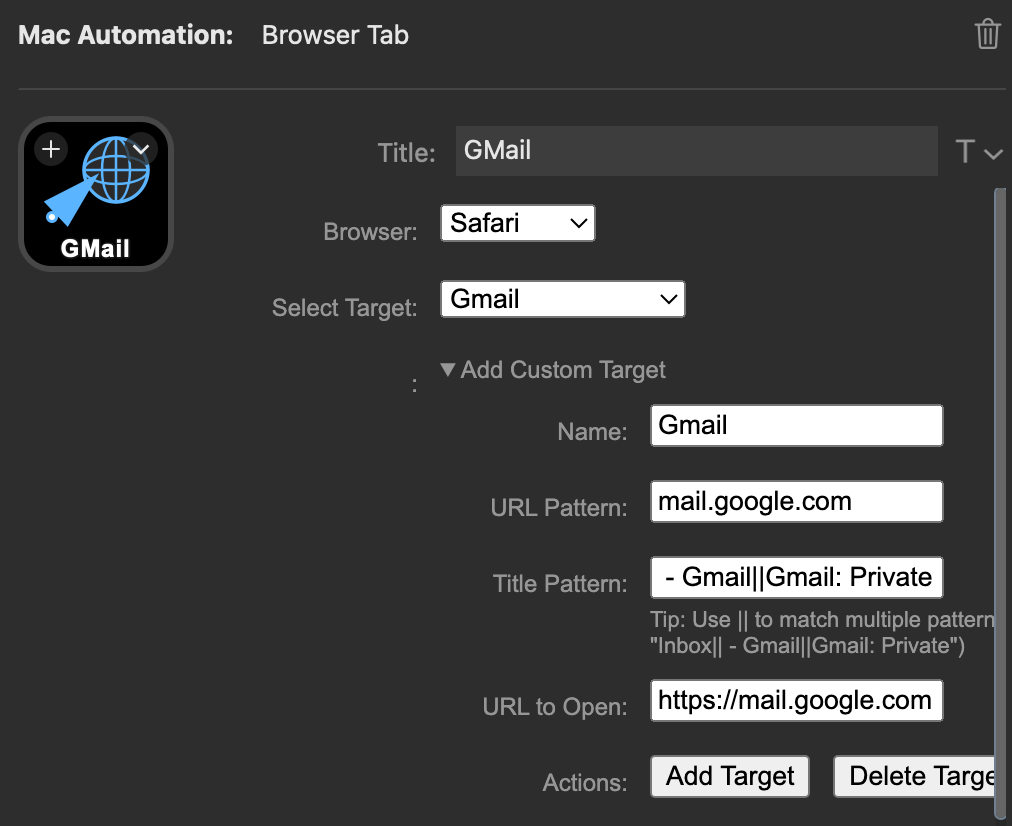
- Browser: Select from available browsers (Chrome, Safari, Orion, etc.)
- Target: Choose from predefined targets or create custom ones
Predefined Targets
- Gmail:
mail.google.com - Google Calendar:
calendar.google.com
Custom Targets
You can create custom targets with:
- Name: Display name for the target
- URL Pattern: Part of the URL to match (e.g.,
github.com) - Title Pattern: Part of the tab title to match (use
||for multiple patterns) - URL: Full URL to open if tab not found
||. For example: " - Gmail||Gmail: Private"

Toggle between two default browsers or select from available browsers.
Configuration
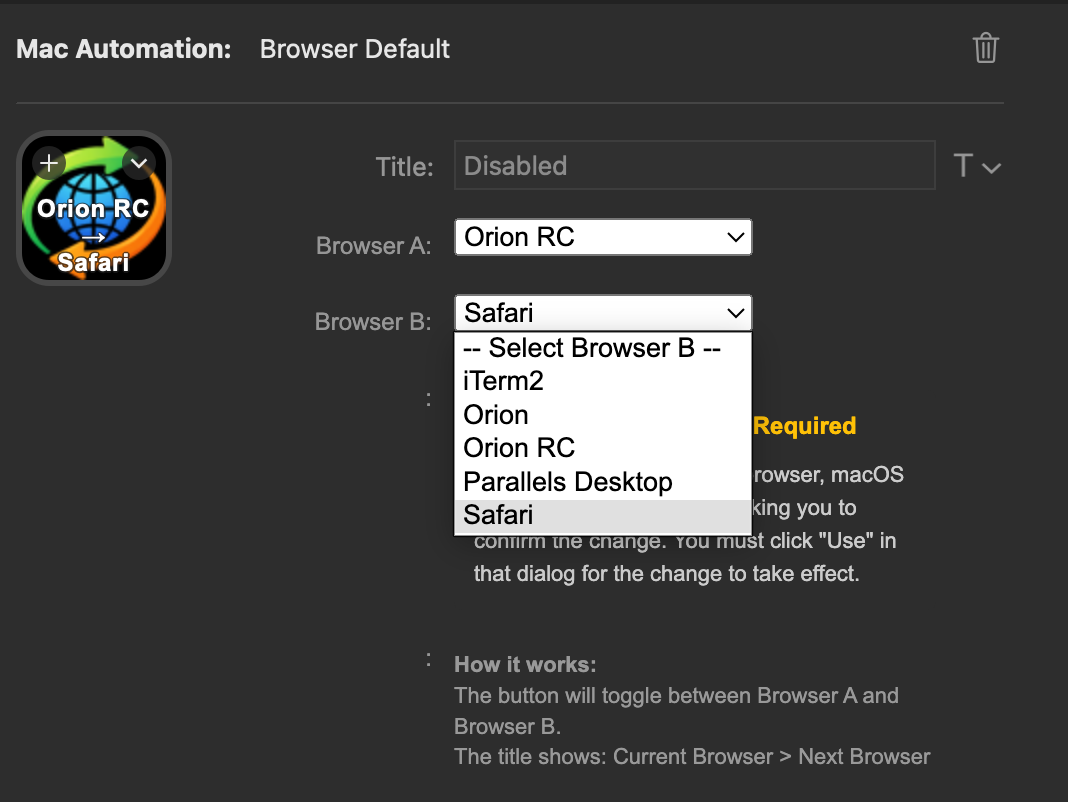
- Browser A & B: Select two browsers to toggle between
- Clicking the button toggles the macOS default browser
- The button shows the currently active browser
In my case, I use Orion as a privacy-and-speed oriented browser, but have it bolted down tightly enough that some sites don't work properly. When I need to open such a site, especially from an app such as Quicken or an email client, quickly switching to Safari solves it.
Move mouse cursor to window center or screen.
Configuration
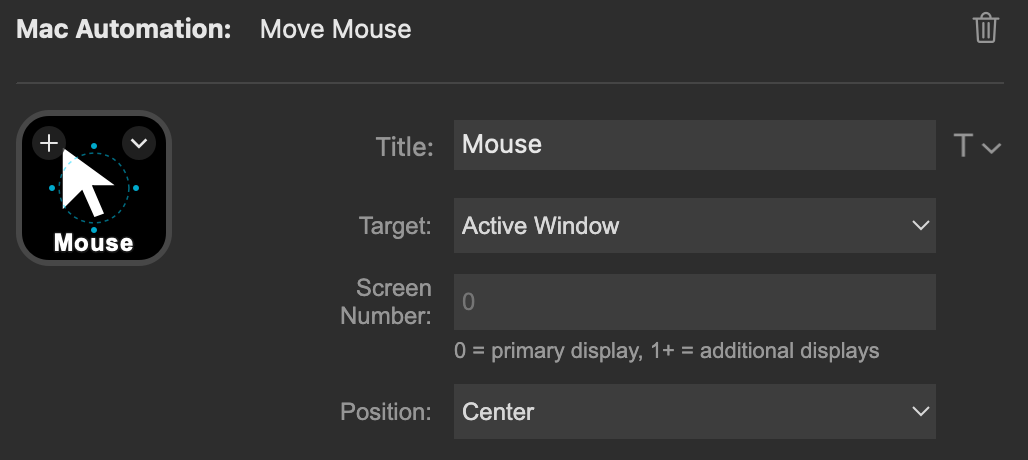
- Target: App (active window) or Screen
- Screen Number: Which screen to move to (0 = primary)
- Position: Center or Home (upper-left)
Move and resize the focused window with smart positioning and multi-monitor support. A minimal window manager.
Configuration
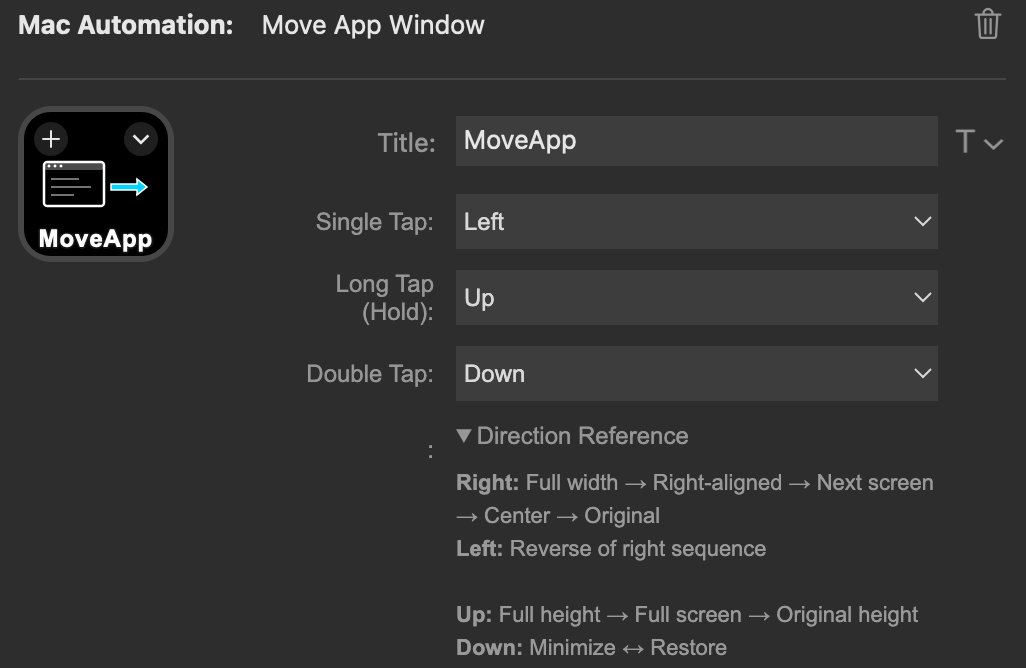
Configure three types of button presses:
- Single Tap: Default action (e.g., move right)
- Long Press: Alternative action (e.g., maximize height)
- Double Tap: Third action (e.g., move left)
Window States
Horizontal (Left/Right):
- Original Position: Proportionate size, centered
- Full Width: Spanning entire screen width
- Align Right: Proportionate width, aligned to right edge
- Align Left: Proportionate width, aligned to left edge
Vertical (Up/Down):
- Full Height: Same width, maximum height
- Almost Full Screen: Full screen with small margin
- Original Size: Return to initial dimensions
Down (Special):
- Window Visible
- Window Minimized
Multi-Monitor Support
When a window is aligned to the edge (state 2 or 3):
- Pressing Right from
Align Rightmoves to next monitor asAlign Left - Pressing Left from
Align Leftmoves to previous monitor asAlign Right

Execute BetterTouchTool triggers directly from Stream Deck.
Configuration
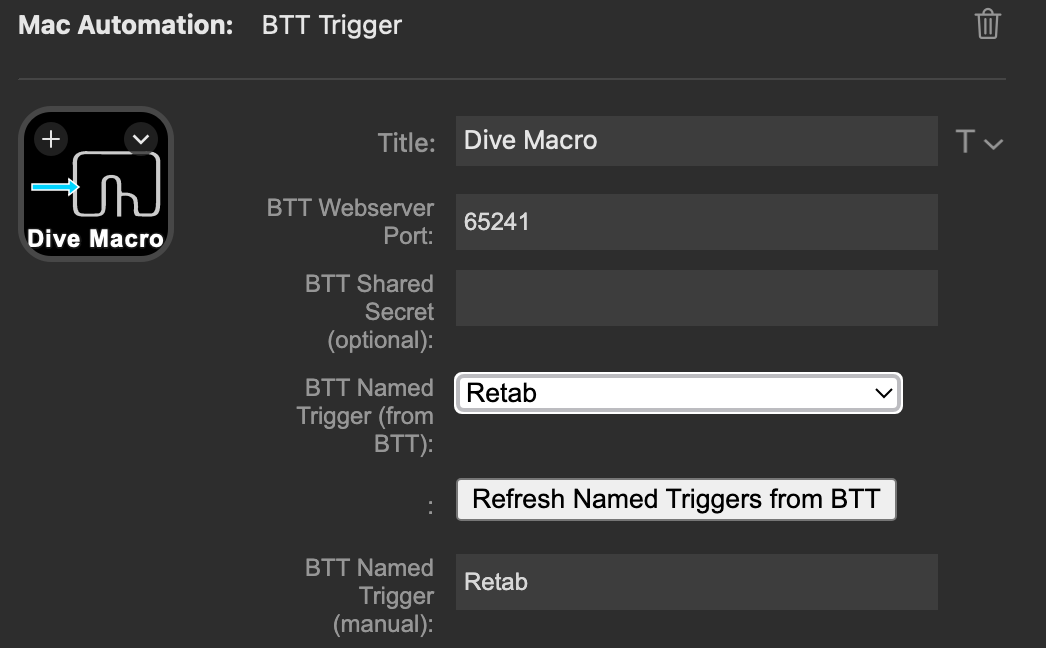
- Trigger Type: Named Trigger (643) or Stream Deck Widget (719)
- Trigger: Select from available triggers fetched from BTT
BetterTouchTool must be running and the webserver must be enabled in BTT preferences.

Display time in multiple time zones with custom labels. Cycle through up to 5 different time zones.
The arc represents the sun/horizon position for the selected time zone. The top (yellow) is daytime, bottom (blue) is nighttime.
Configuration
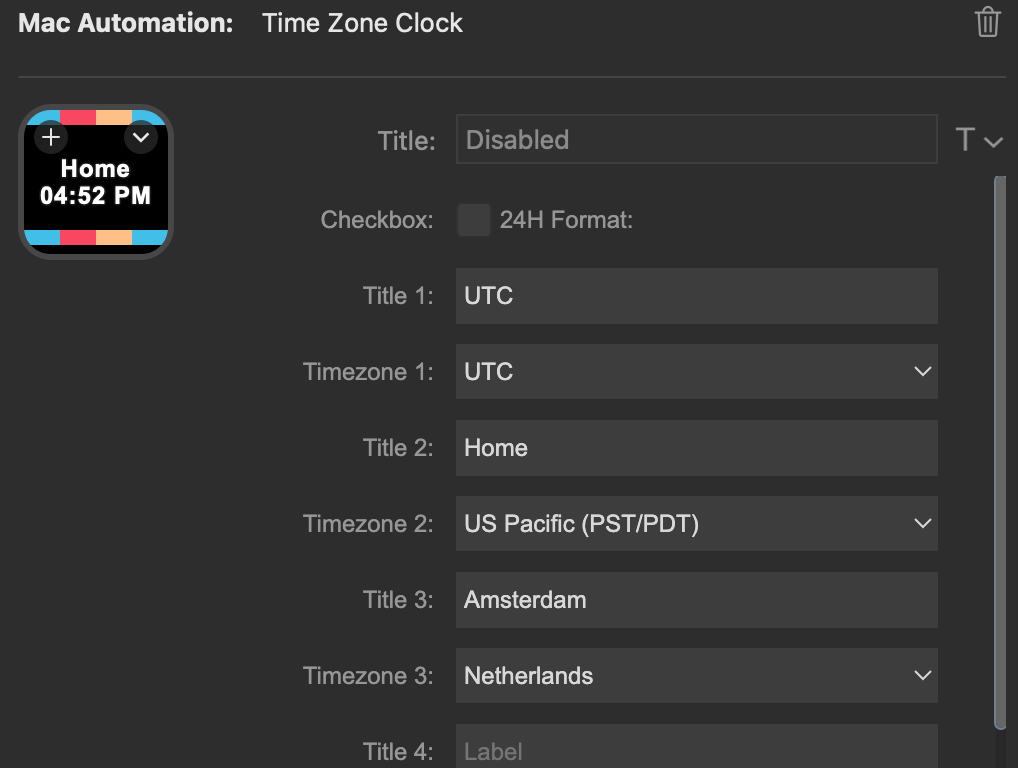
- Time Zones (1-5): Select from world time zones
- Custom Labels: Give each time zone a friendly name (e.g., "Home", "Office", "London")
- 24-Hour Format: Toggle between 12-hour and 24-hour display
- Click to Cycle: Press the button to rotate through configured time zones

Set a countdown timer with custom duration and title. Visual countdown display with alert on completion.
Configuration
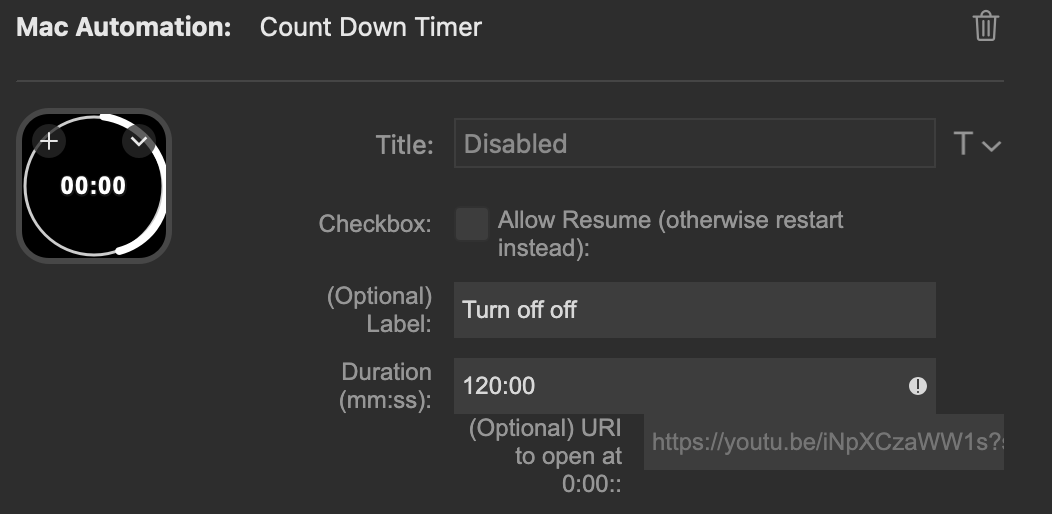
- Title: Custom label for the timer (e.g., "Meeting", "Break Time")
- Duration: Set time in format
MM:SSorHH:MM:SS - Start/Stop: Press button to start countdown
- Reset: Long press to reset timer
Examples
5:00- 5 minute timer25:00- 25 minute Pomodoro1:30:00- 1 hour 30 minute timer

Simple stopwatch to track elapsed time with start, stop, and reset functionality.
Configuration
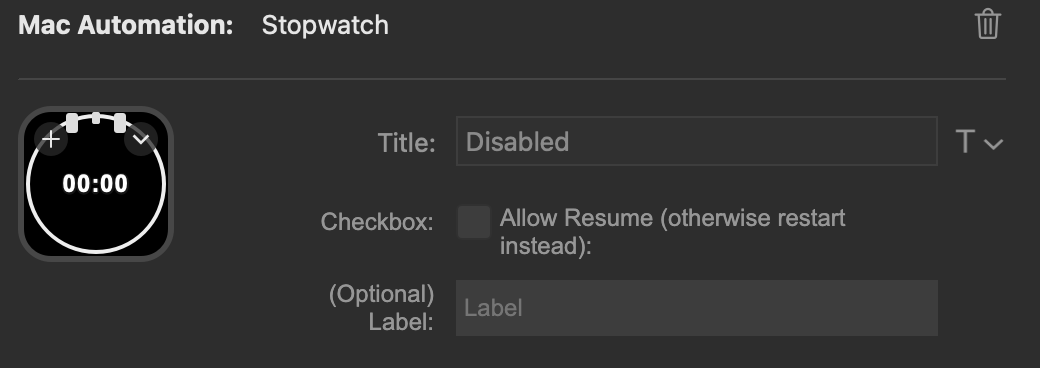
- Start: Press button to begin timing
- Stop: Press again to pause
- Resume: Press while paused to continue
- Reset: Long press to reset to zero
HH:MM:SS format.
Key Reference
All keys that can be used inside {curly braces}:
Modifiers
cmd,commandctrl,controlalt,optionshift
Letters & Numbers
- Letters:
a-z - Numbers:
0-9
Function Keys
f1throughf20
Special Keys
enter,returntab,spaceescape,escdelete,backspaceleft,right,up,downhome,endpageup,pagedown
Punctuation
minus,equalleftbracket,rightbracketsemicolon,quotebackslash,commaslash,periodgrave(backtick)
Literal Characters
For typing special characters:
leftbrace→{rightbrace→}doublequote→"colon→:question→?
Media Keys
volumeupvolumedownmute
Commands
{pause N}- Pause for N milliseconds
Modifier Combinations
{cmd+c}           - Command+C
{ctrl+alt+delete} - Ctrl+Alt+Delete
{shift+enter}     - Shift+Enter
{cmd+shift+f}     - Command+Shift+F
Tips & Tricks
URL Cleanup
Remove tracking parameters from URLs:
{cmd+c}{grab}{trim after ?}{paste}Quick Navigation
Type commands with delays:
cd Projects{enter}{pause 200}code .{enter}Text Transformation
Wrap selected text:
{cmd+c}{grab}{insert before [}{insert after ]}{paste}Multi-Monitor Workflow
Set up Move App buttons for quick window management across multiple displays.