SnapMatic
Intent
SnapMatic is a menubar utility that gives you reliable, always-available window and mouse control from global hotkeys. It’s designed for power users who want repeatable window movement—not just “snap left/right,” but a configurable sequence of positions that can differ per application.
 The menubar icon is intentionally tiny and unobtrusive—it’s the small status item you’ll see in the macOS menu bar.
Quick Start
On first run, macOS will prompt you to enable Accessibility permissions for SnapMatic. Enable it in
System Settings → Privacy & Security → Accessibility, then relaunch SnapMatic.
1) Install & run
SnapMatic runs as a menubar-only agent (no Dock icon).
- Launch SnapMatic.
- Grant Accessibility permissions when prompted.
- Open SnapMatic settings from the menubar icon.
2) Bind your hotkeys
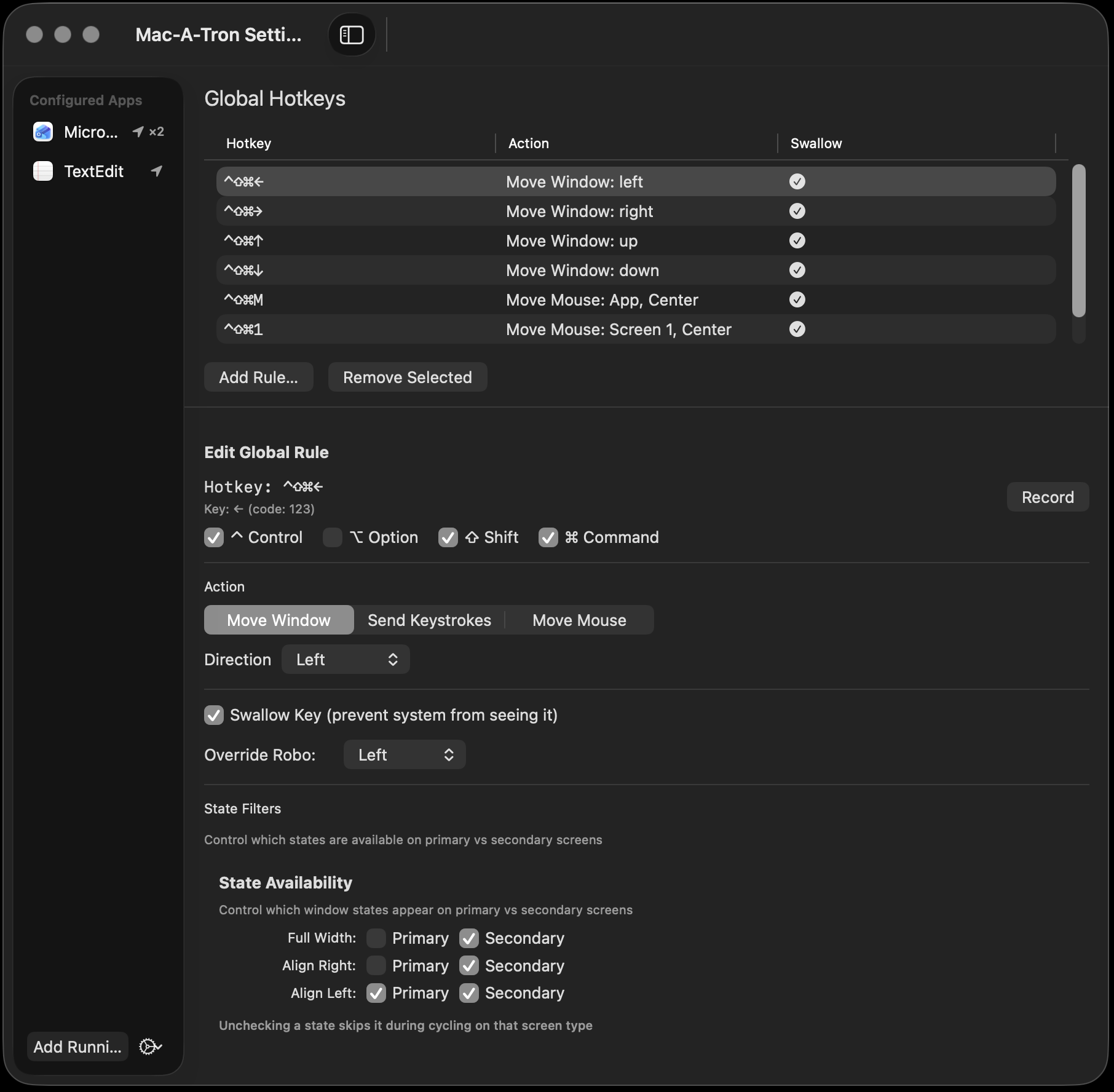
Assign hotkeys for window movement (left/right/up/down) and optional mouse moves. SnapMatic intercepts global hotkeys using an event tap, so it stays active above other apps.
3) Add saved positions (optional)
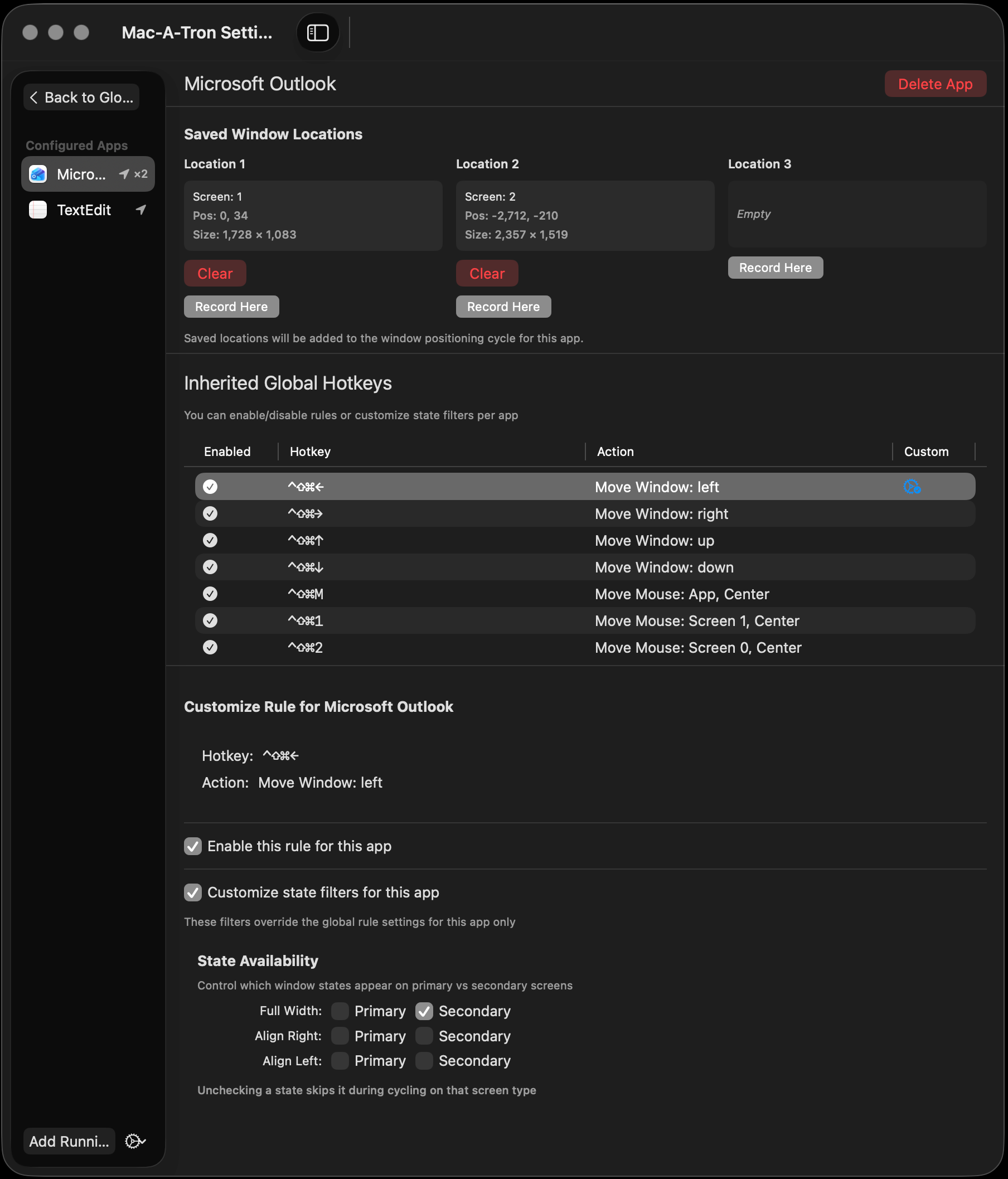
You can define up to three “saved locations” that become part of the left/right cycle. This is what turns SnapMatic from “minimal window manager” into “workflow window manager.”
Core Concepts
Two independent state machines
SnapMatic tracks horizontal (left/right) and vertical (up/down) movement as separate state machines. That means you can adjust width/position without losing your height state, and vice versa.
Per-app memory
SnapMatic remembers window “original” size and position independently per application, so returning to “original” actually means “original for this app.”
Interface Screenshots
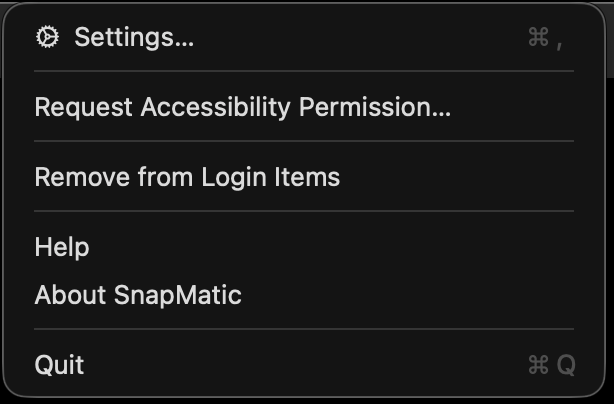
Menubar menu
Main configuration
App-specific overrides
Window State Machines
Horizontal states (Left/Right)
Cycles through 7 states (0–6), where 4–6 are optional saved locations.
| State | Description | Notes |
|---|---|---|
0 | Original | Proportionate size, centered |
1 | Full Width | Spans screen width, keeps height |
2 | Align Right | Proportionate width, right edge |
3 | Align Left | Proportionate width, left edge |
4–6 | Saved Locations | Up to 3 custom positions |
Vertical states (Up/Down)
| State | Description | Notes |
|---|---|---|
0 | Full Height | Max height, keeps width + X |
1 | Almost Full | Small margin to avoid macOS fullscreen |
2 | Original | Restores original height + Y |
Per-App Rules
SnapMatic’s advantage over basic “snap” tools is that you can tune the cycle per application: which saved locations exist, whether they’re screen-specific, and how the flow feels for that app’s typical tasks.
Config file
Stored in:
~/Library/Application Support/SnapMatic/config.jsonMulti-Monitor Behavior
Edge-triggered monitor switching
When the window is aligned to an edge:
Right from Align Right moves the window to the next monitor as Align Left, and
Left from Align Left moves to the previous monitor as Align Right.
Proportionate sizing
Positions adapt across monitors with different resolutions so the layout feels consistent.
Integration with Mac-A-Tron
SnapMatic shares the same core window/mouse automation library as the Mac-A-Tron Stream Deck plugin, so a Stream Deck button can invoke “move app / move mouse” behaviors while SnapMatic provides the richer, hotkey-driven window manager layer.
Troubleshooting
Hotkeys don’t fire
- Confirm Accessibility permission is enabled for SnapMatic.
- Some contexts (Secure Input) can block event taps.
- Avoid heavy work in hotkey handlers; keep callbacks fast.
Window doesn’t move as expected
- Verify saved locations for the current app and whether they’re screen-specific.
- Check you’re on the expected monitor; monitor-switching triggers only from edge-aligned states.